Member Management
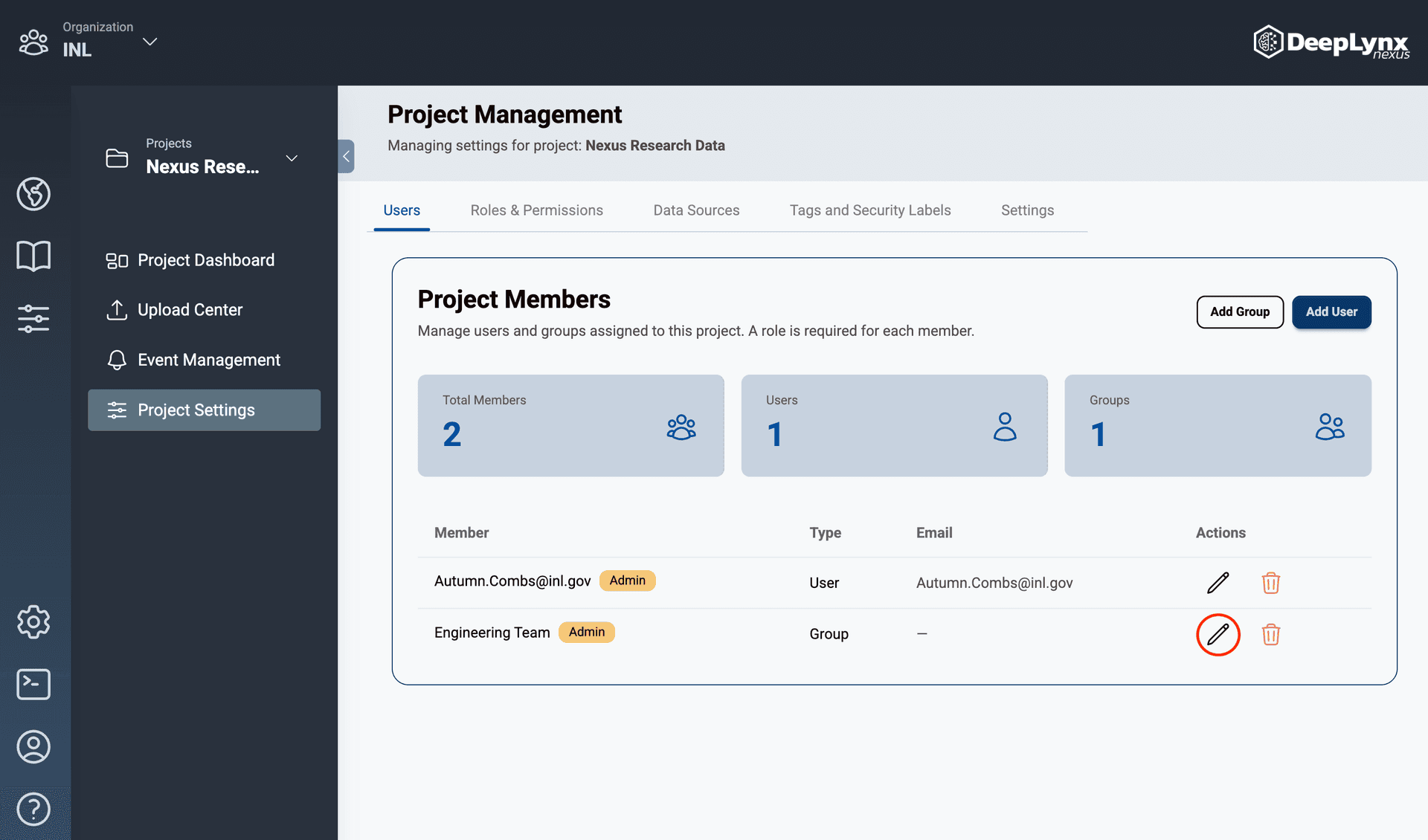
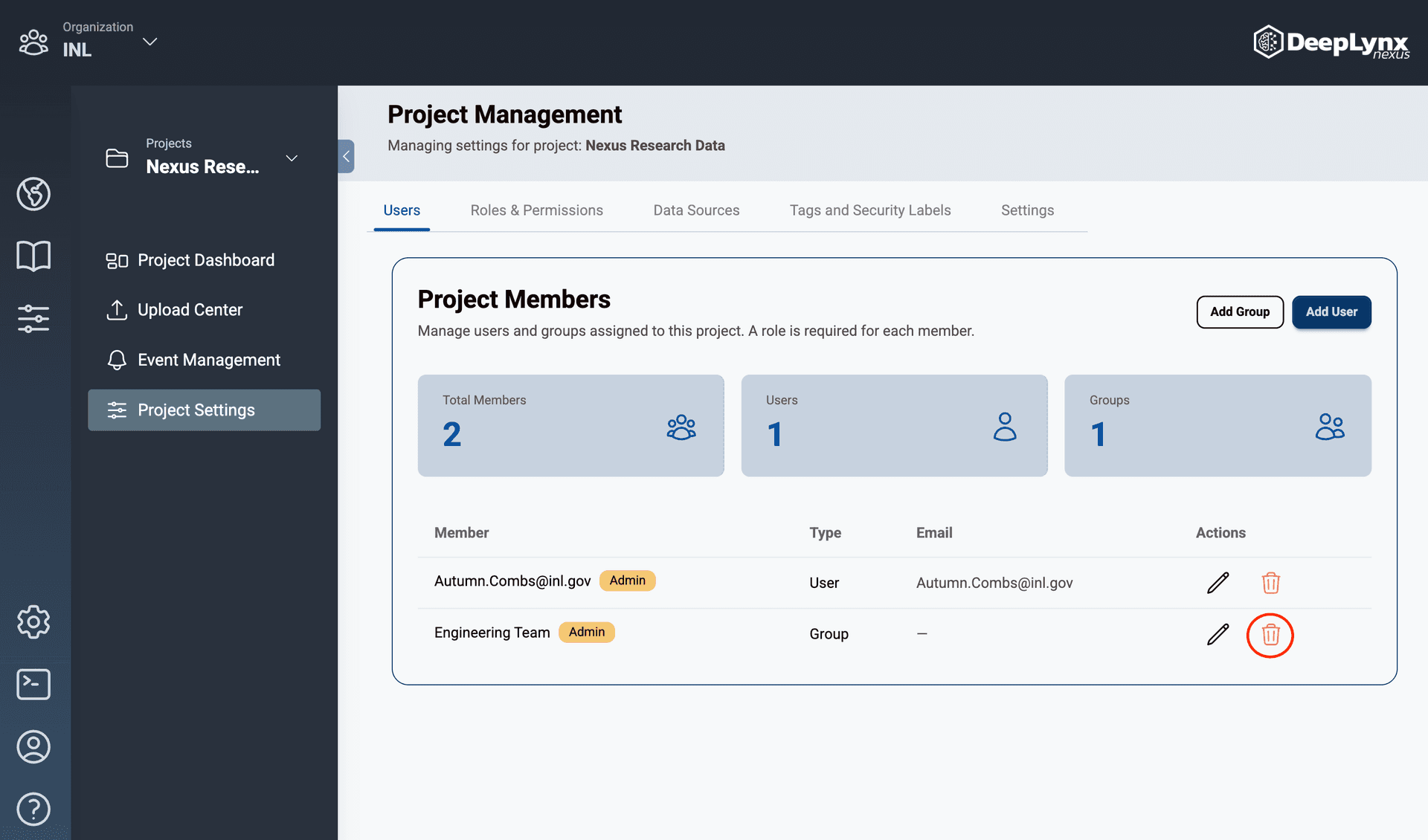
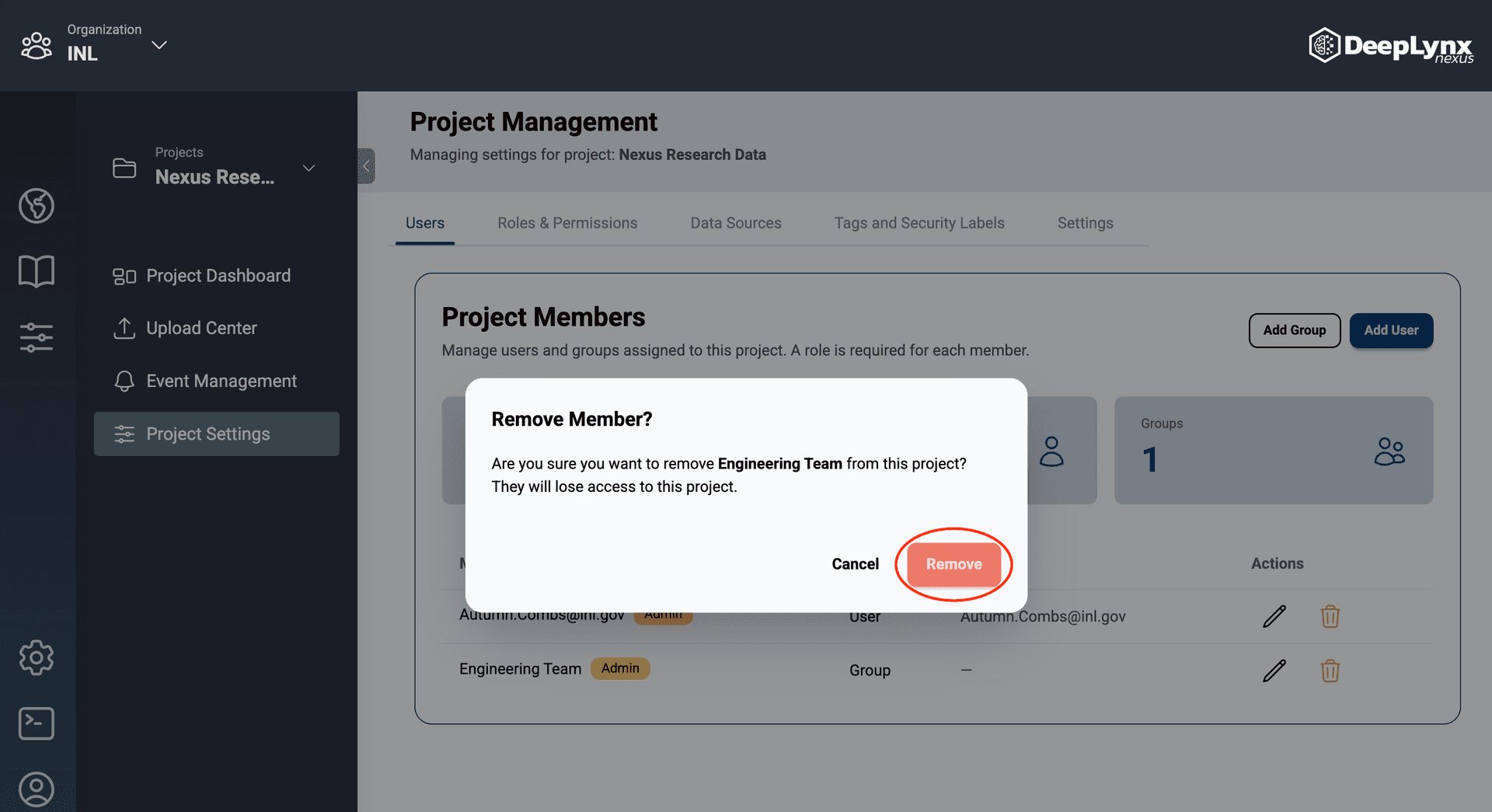
The Users tab of the Project Management page has a table containing all active and pending members. Project admins have the ability to add, edit, and remove users and groups from projects.
Adding Members to Projects
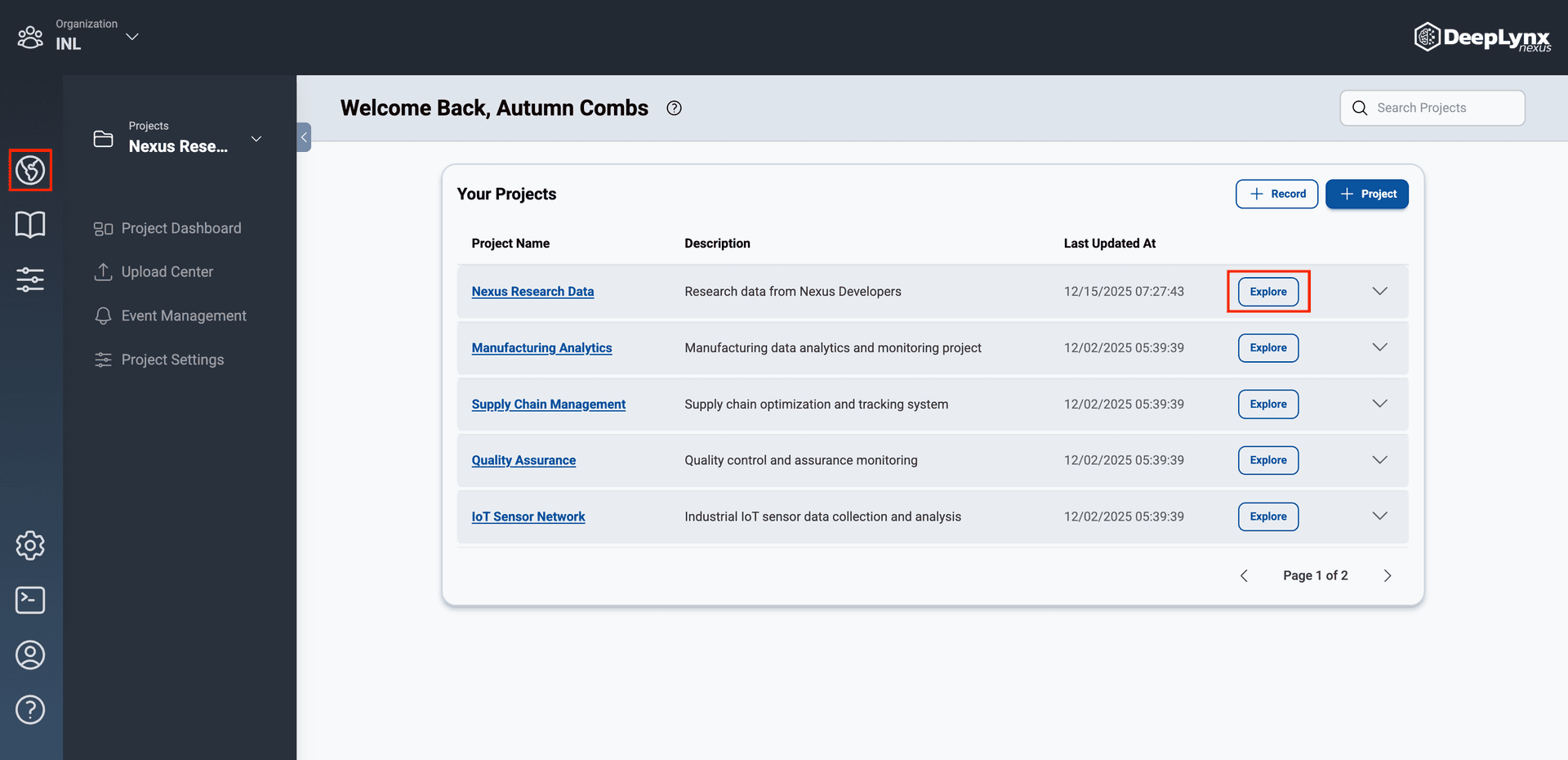
From the landing page, select the “Explore” button of the desired project within the “You Projects” modal.
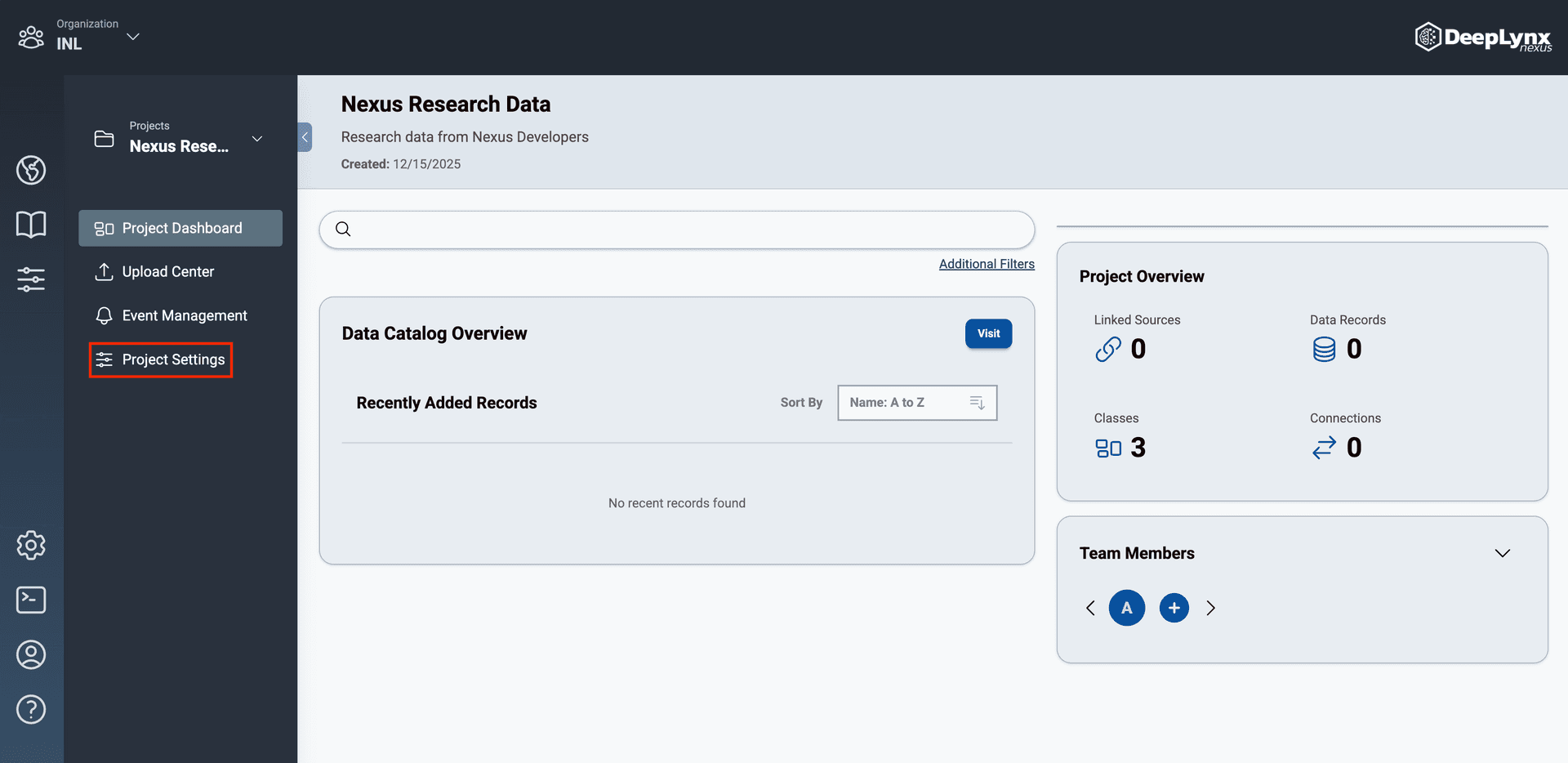
Once on the Project Management page, navigate to the “Project Settings” section by clicking the slider bar icon on the inner toolbar.
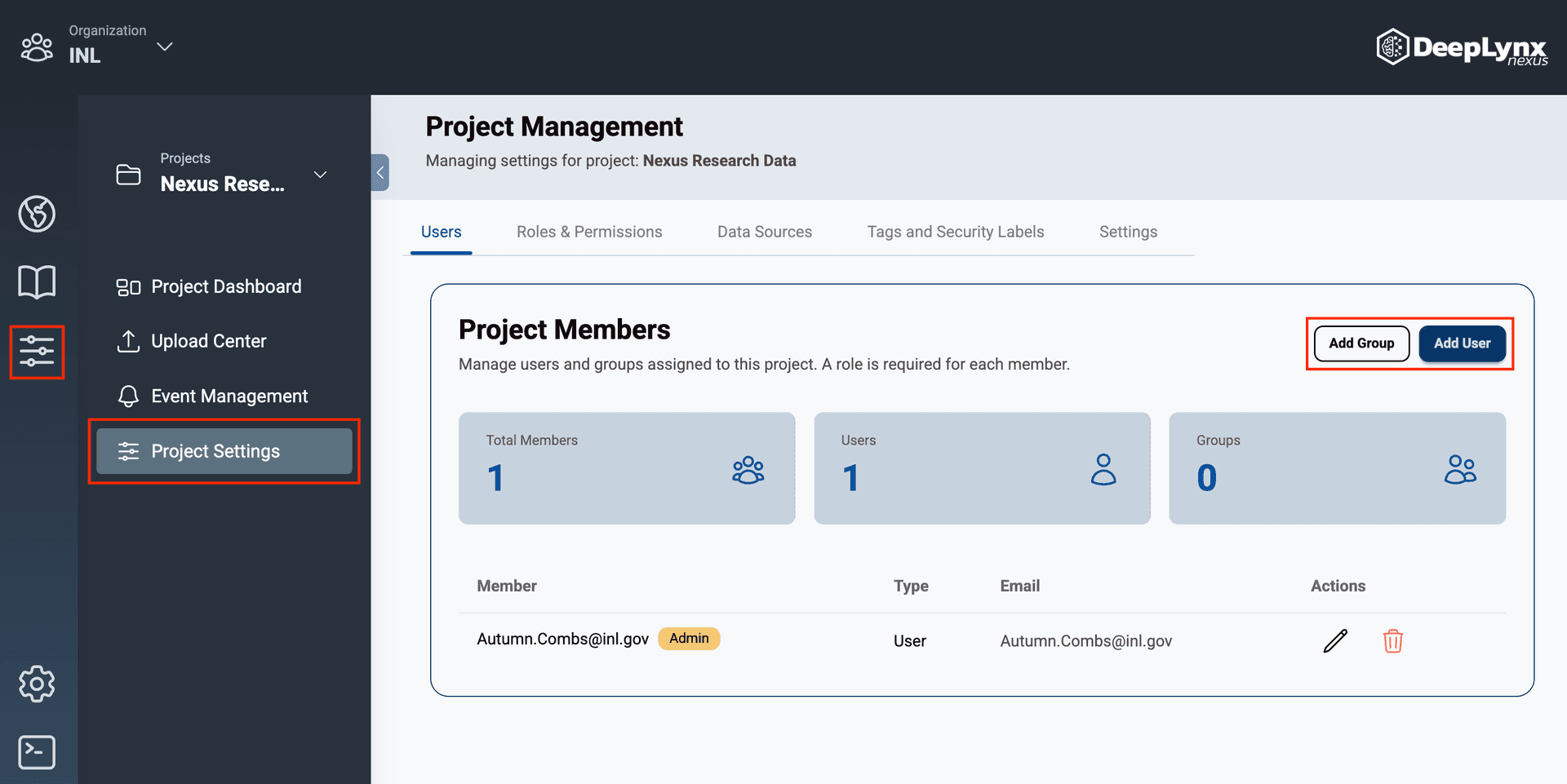
On the Users tab of the Project Management page, click the “Add Group” or “Add User” button.
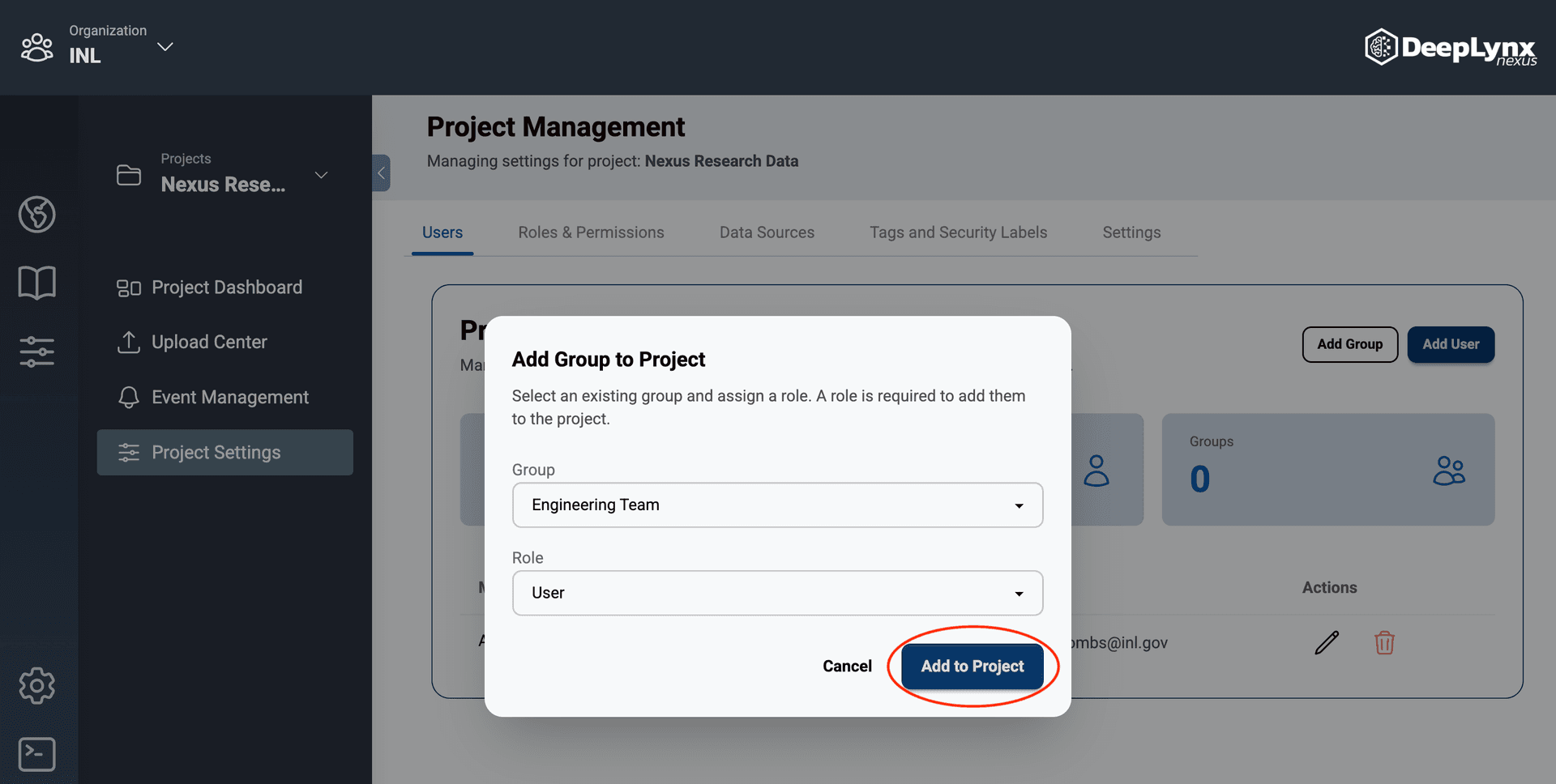
Select the members and their roles then click “Add to Project”.
- For Groups: select an existing group and role.
- For Users: select the user’s email address and role.
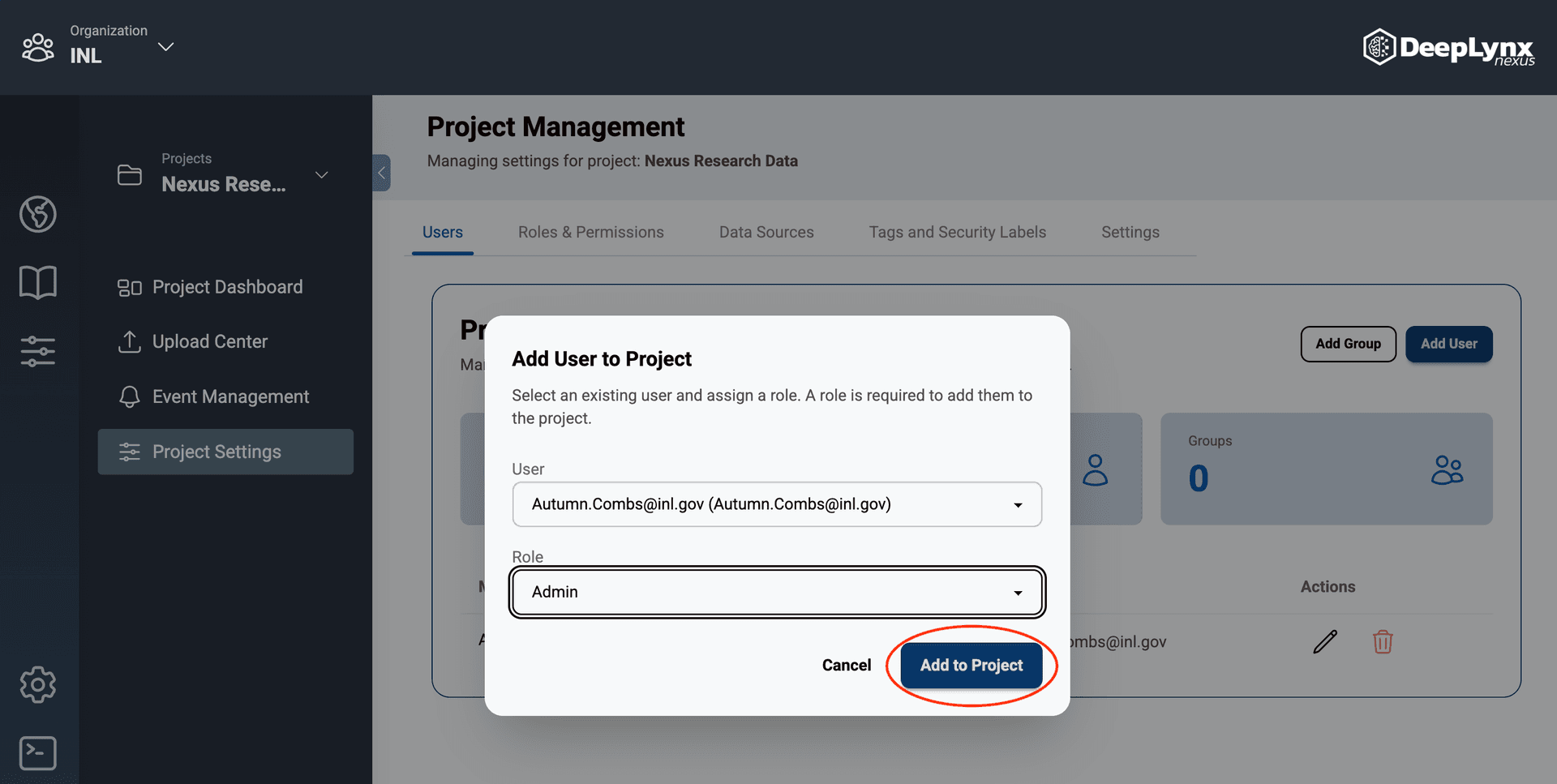
The new members will appear in the members table of the Project Management page!
Editing Members in Projects
Click the pencil icon in the actions column of the member management table.
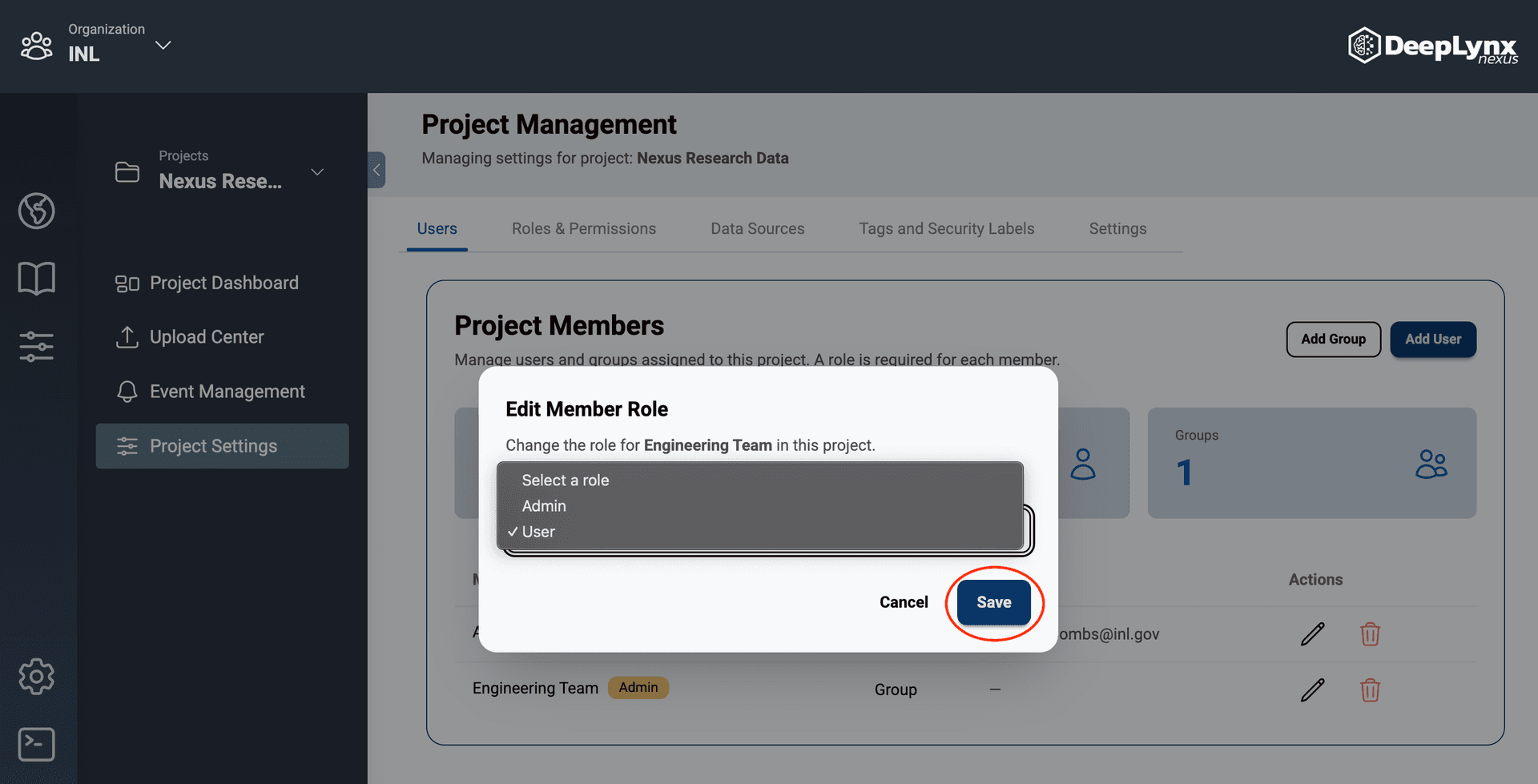
Update the member’s information in the Edit Member modal and hit save.