Group Management
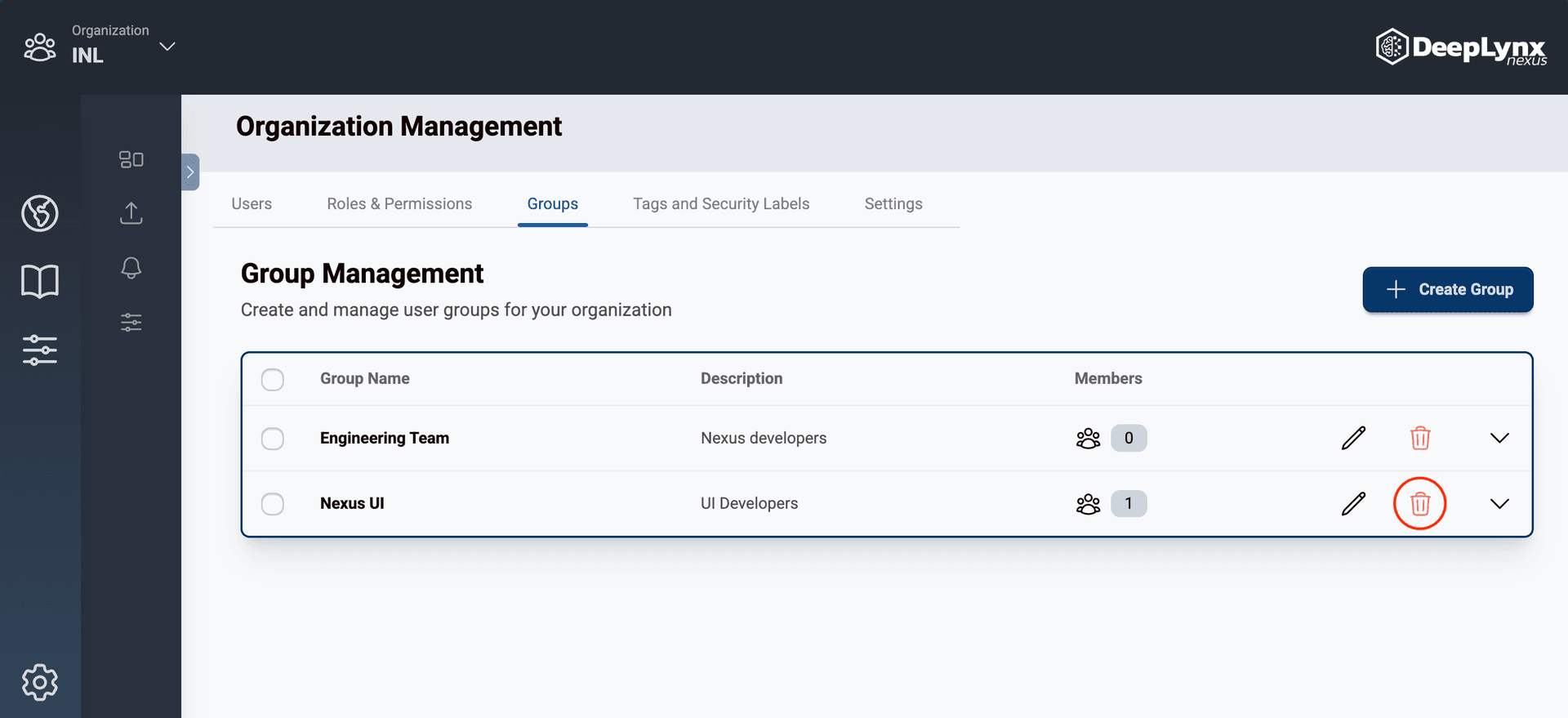
The Groups tab of the Organization Management page has a table containing all active groups within the organization. Organization admins have the ability to create, edit, delete, and add users to groups.
Creating Groups
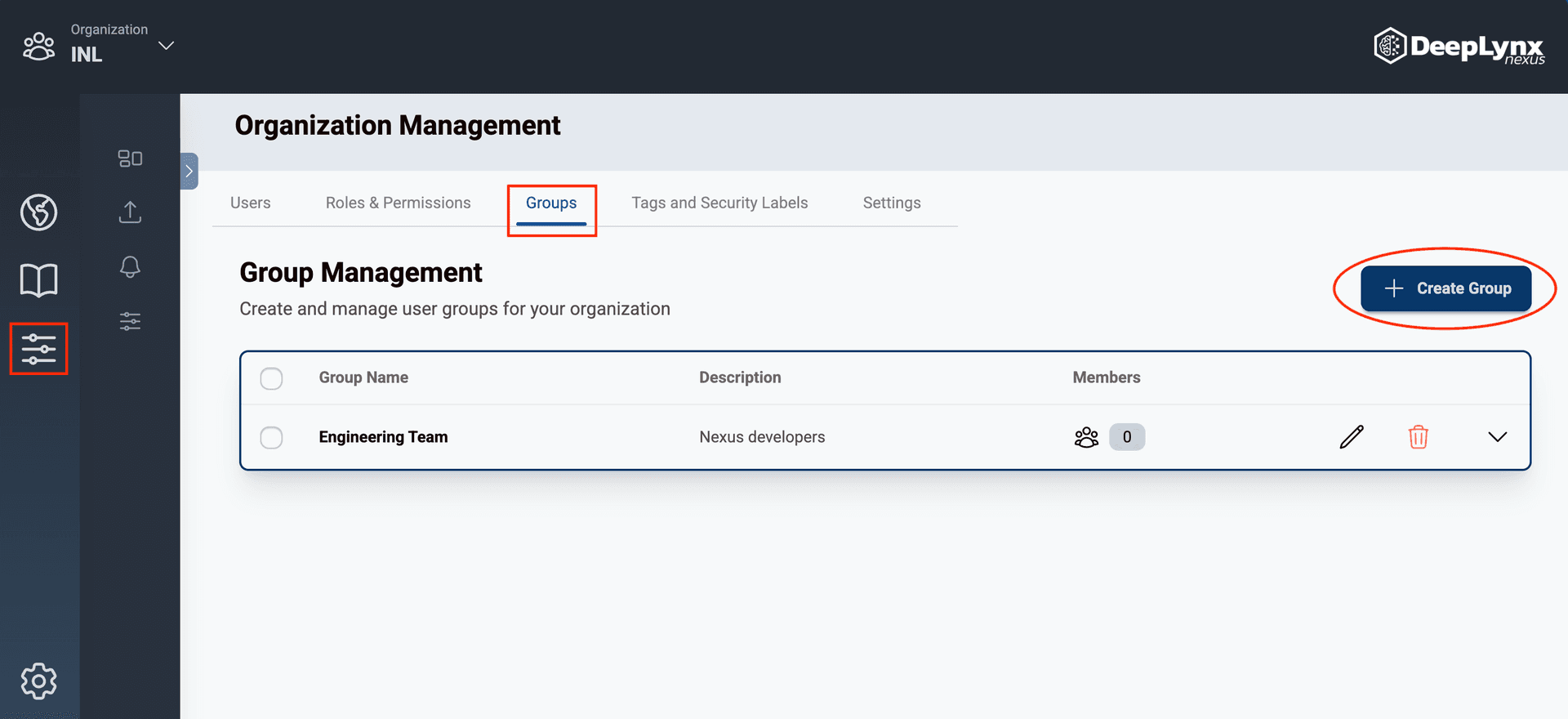
Navigate to the Organization Management page by clicking the slider bar icon on the outermost toolbar.
On the Groups tab of the Organization Management page, click the “Create Group” button.
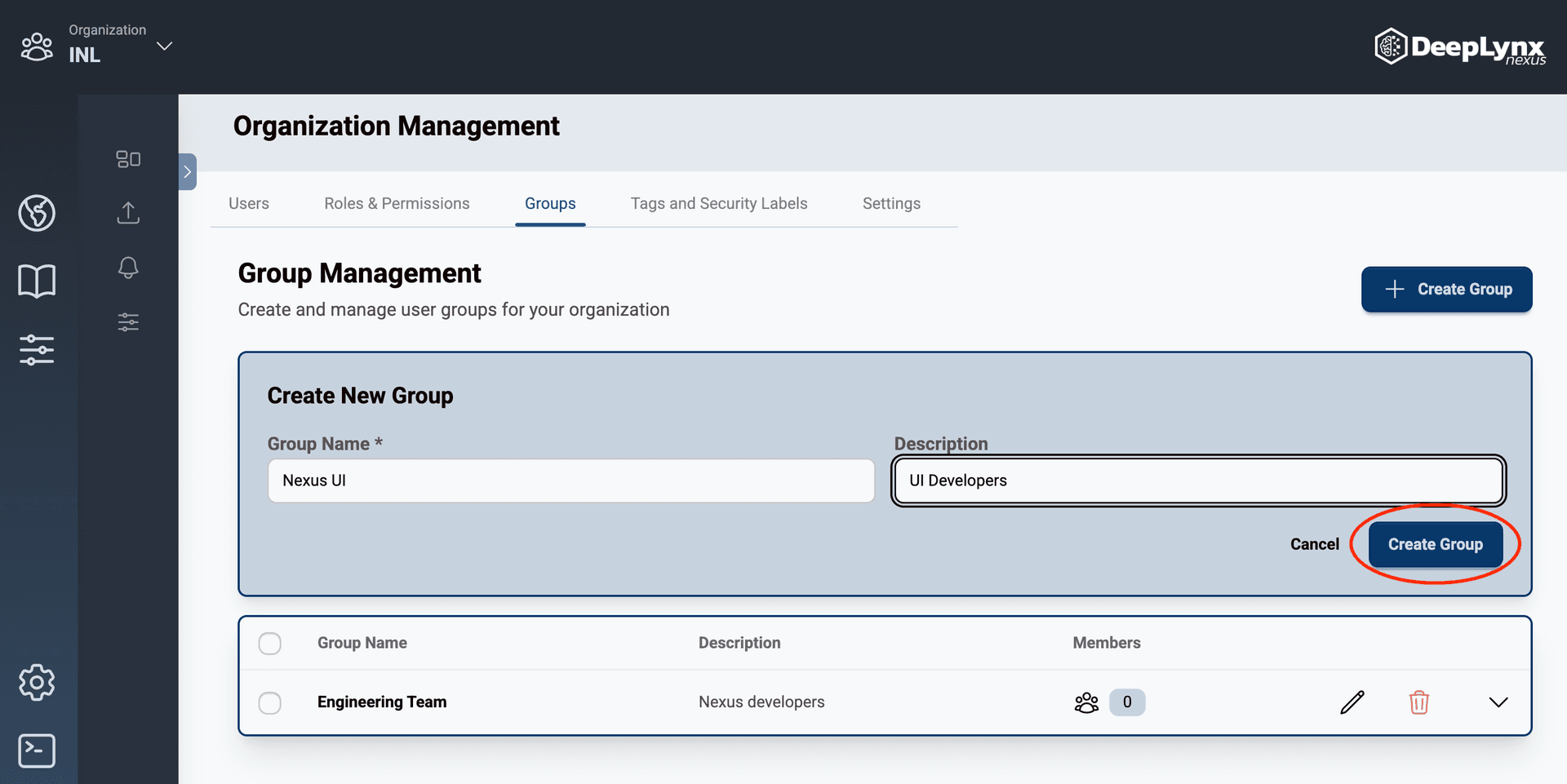
Enter the group name and description then click “Create Group”.
The group will be added to the organization and displayed in the groups table.
Adding Users to Groups
Navigate to the Group Management tab of the Organization Management page.
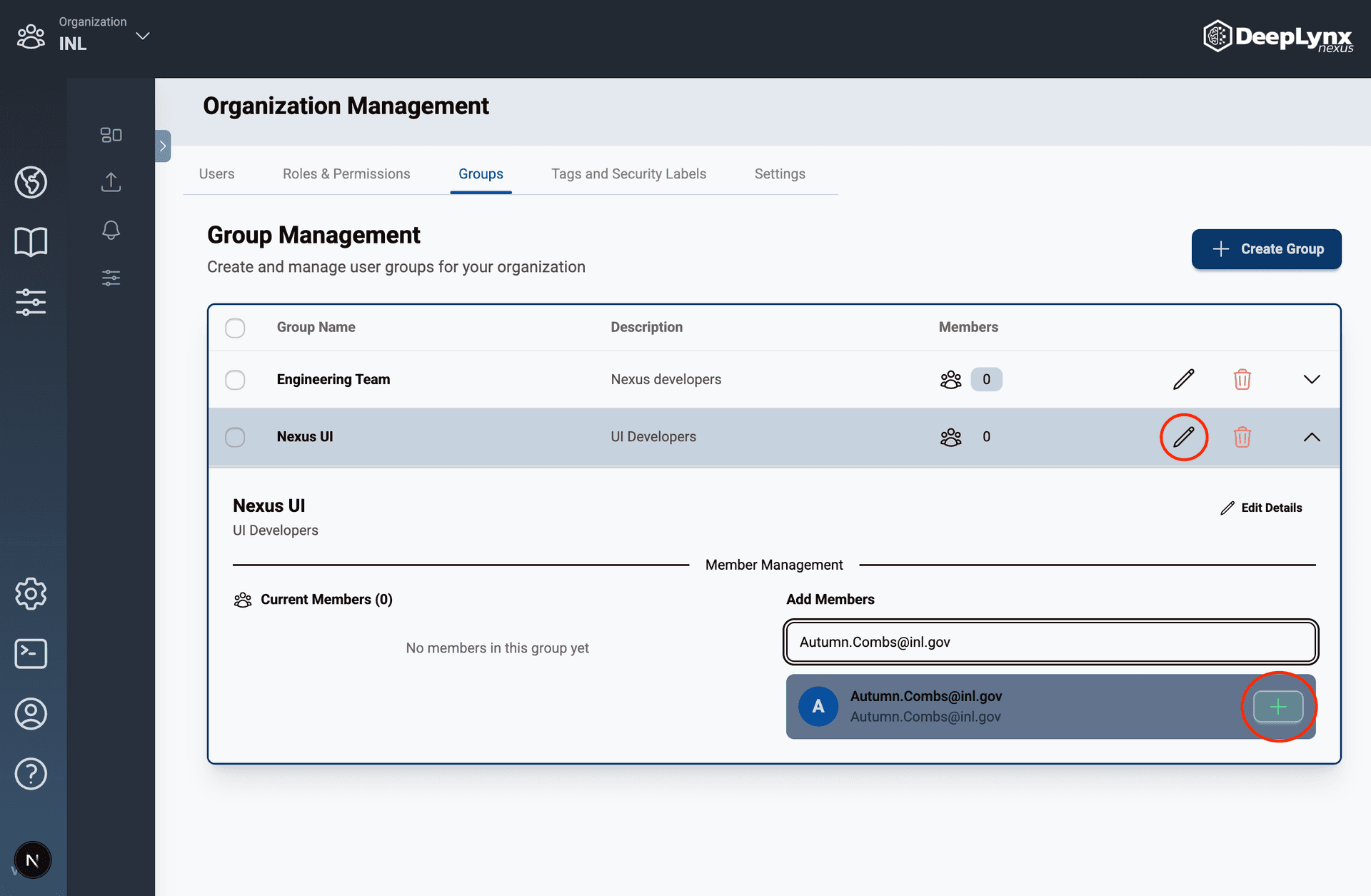
Inside the Groups table, click the pencil icon OR the group name to edit it’s members.
Enter the user’s email address in the search bar under “Add Members”.
A list of users will appear under the search bar, click the green plus sign of the selected user.
The user will be added to the group and appear under the “Current Members” header!
Editing Groups
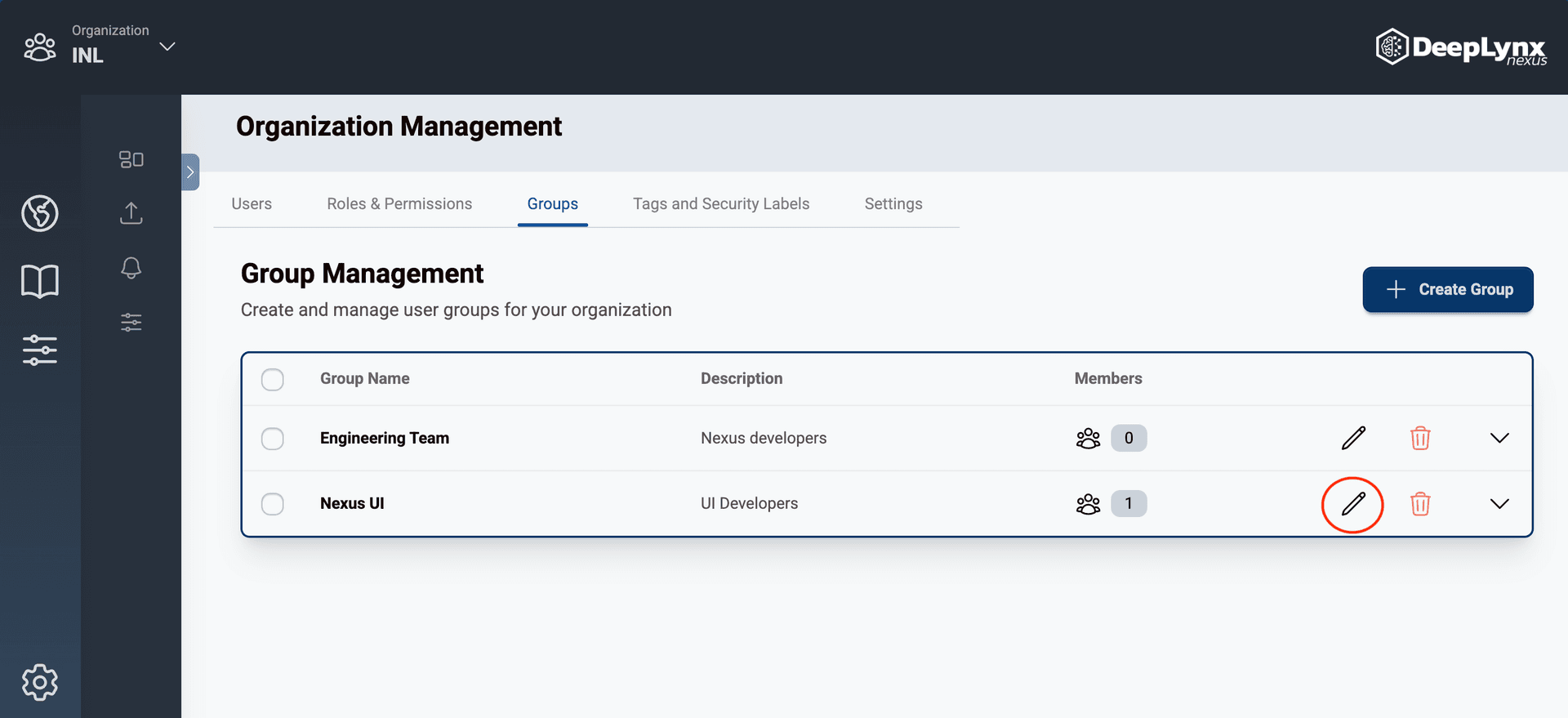
Click the pencil icon in the action column of the organization management groups table.
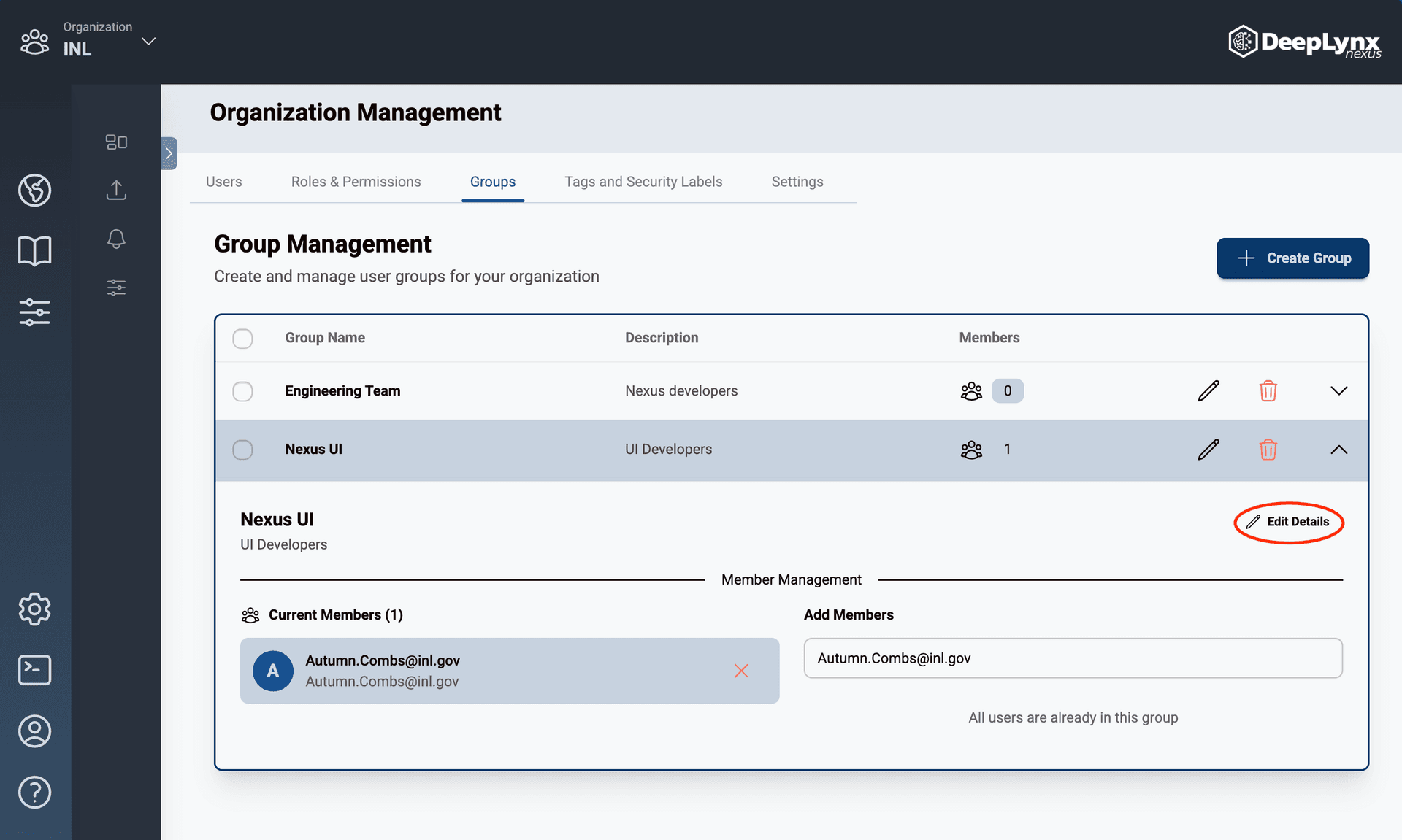
Or click the “Edit Details” button when the group is expanded.
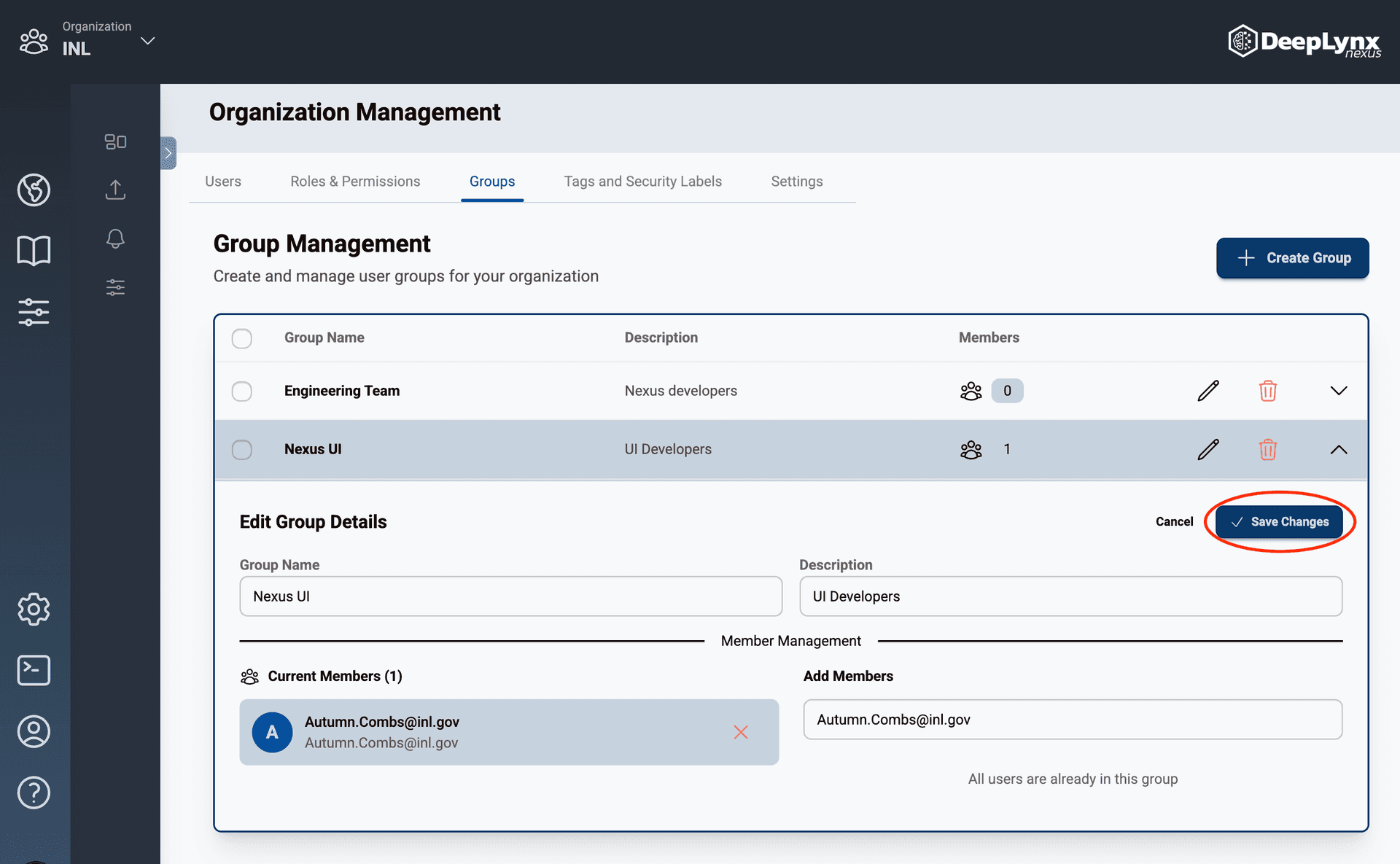
Update the group’s information in the Edit Group modal and hit save.
Removing Users from Groups
Click the name of the Group to expand it’s information and members.
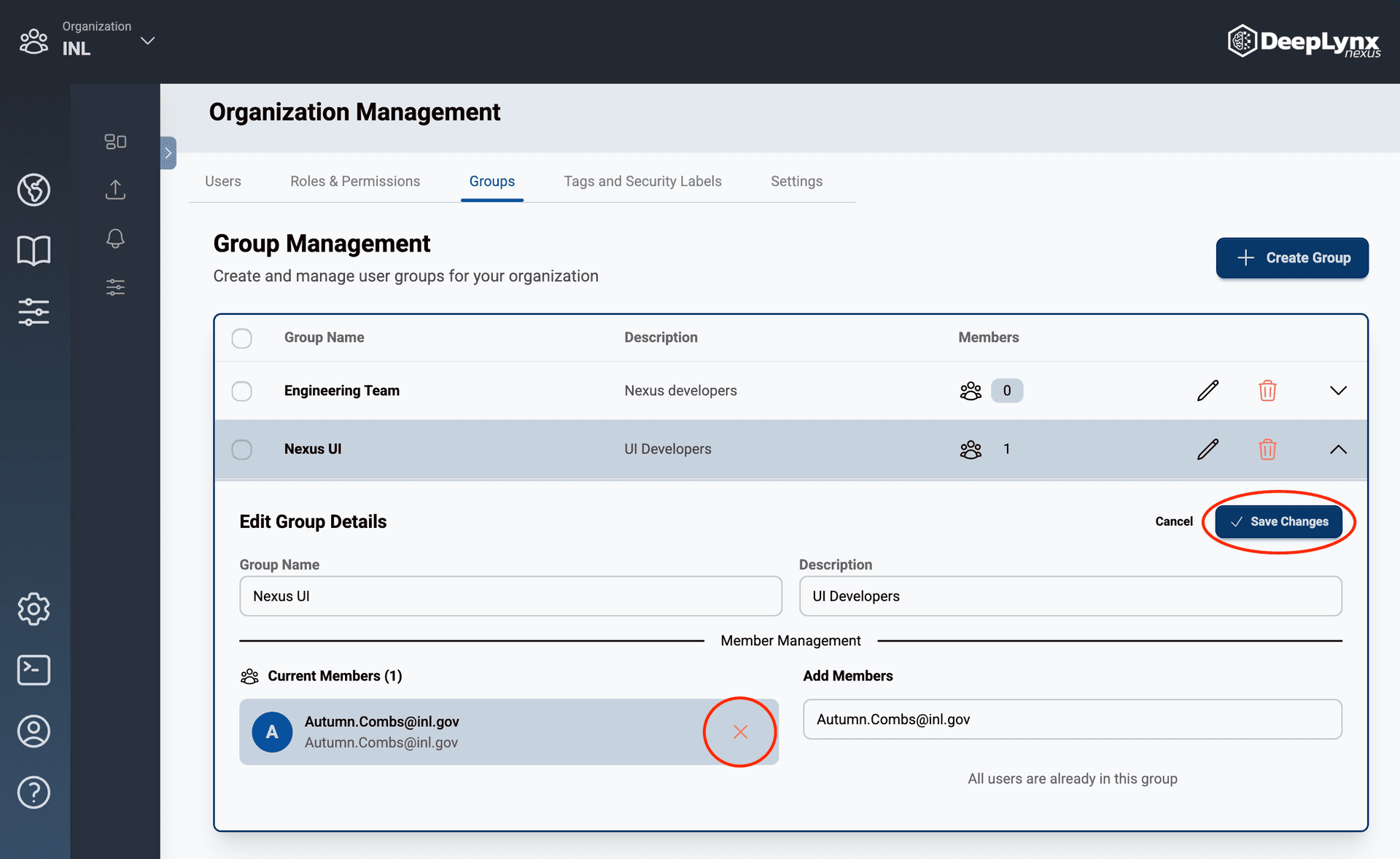
Under the “Current Members” header, click the red “X” button next to the email of the user to be removed.
The user will be removed from the “Current Members” of the selected group.
Note: Once a user is removed from a group they must be added again to regain access.