API Keys
API authentication requires you to obtain a temporary Bearer token, create your API Key and Secret, then exchange them for access tokens with configurable lifetimes for your API requests.
Creating an API key/secret pair and retrieving an access token will get you ready to work with the Scalar API client on the next page.
Authentication Workflow
Follow these steps to generate a key/secret pair and get authenticated. A key/secret pair is a personal credential that you’ll use to generate access tokens, granting access to your data via the Nexus API.
Sign into the Application
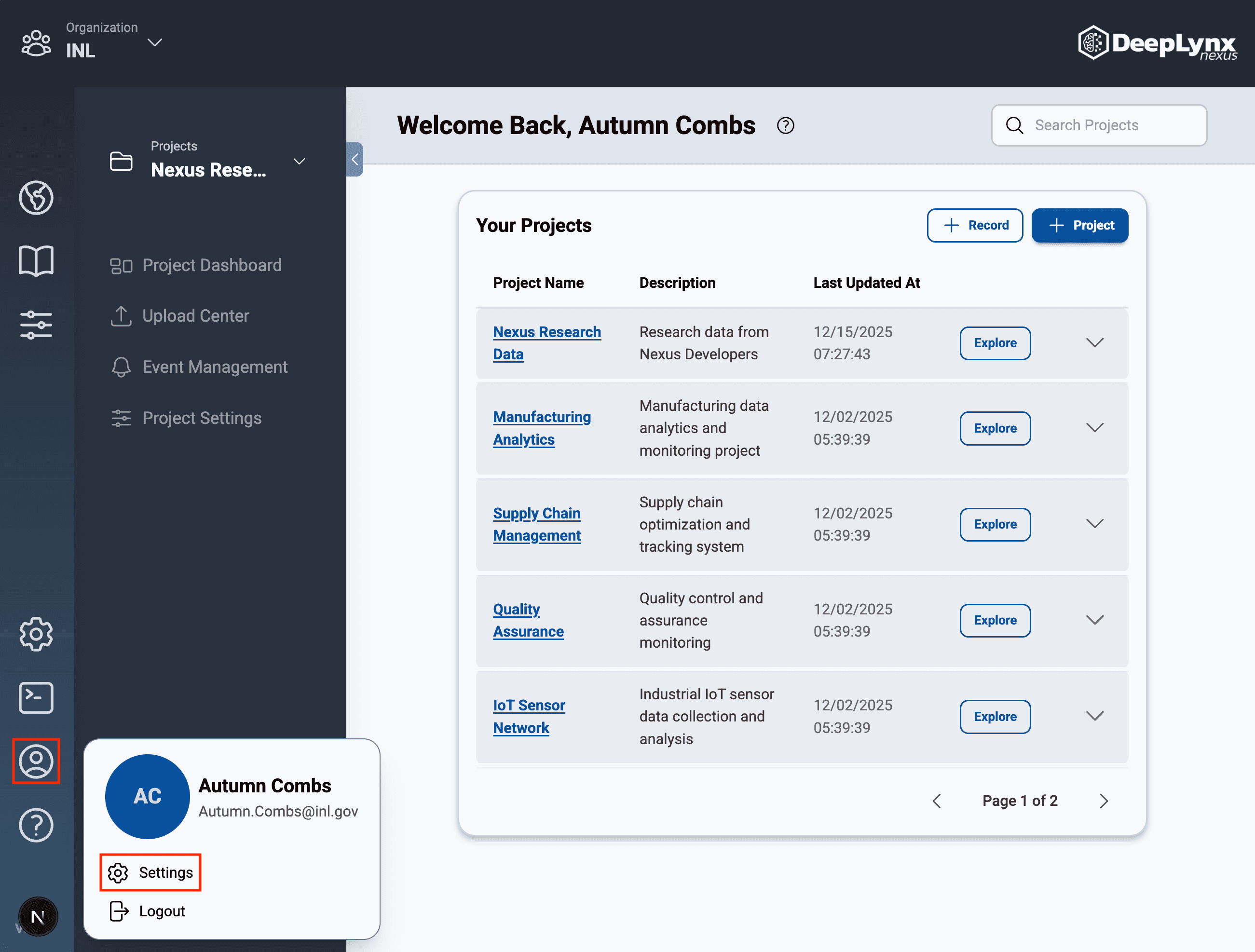
Sign into the app through the web interface to access your account. Select the profile icon in the bottom left corner and click the “Settings” button.
Create Your API Key and Secret
Near the bottom of the Settings page, in the API Keys section, click the “Generate New” button:

A new API key/secret pair will appear at the top of your screen.
The API key/secret pair will only be shown together once. You should save the API Secret in a secure location. Consider a password manager, a private environment variable, or another secrets manager. If you lose it, you’ll need to generate another key/secret pair.
An API Secret is like a password to all your data. Never share it with anyone or commit it to version control.
This key/secret pair is only for individual developers working directly with the API. If you’re building an app that uses DeepLynx Nexus, check out the OAuth 2.0 Guide.
Create an Access Token
Next, use your API key/secret pair to generate an access token. Navigate to the Nexus API in Scalar for a human readable API interface.
This endpoint does not require a bearer token.
Create an Access Token
curl https://deeplynx.inl.gov/api/v1/oauth/tokens \
  --request POST \
  --header 'Content-Type: application/json' \
  --data '{ \
  "apiKey": "YOUR_API_KEY",
  "apiSecret": "YOUR_API_SECRET
}'
The expirationMinutes parameter is optional and sets the token lifetime in minutes. If omitted (null), tokens default to 60 minutes.
Response
You will receive an access token in the response, like this:
eyJhbGciOiJIUzI1NiIsInR5cCI6IkpXVCJ9.eyJzdWIiOiJuYXRoYW4ud29vZHJ1ZmZAaW5sLmdvd...An access token is a time limited credential which uniquely identifies you, and gives you access to all your data. Never share an access token.
Using an Access Tokens for API Requests
Now you can use the Nexus API by including your access token in the Authorization header of all subsequent API requests.
You’ll need other metadata about the Nexus instance, like which Organization and Project you belong to, in order to direct your requests. Let’s do that now.
Let’s list all Organizations
Note that the access token in the authorization header on a request is prefixed by the Bearer keyword, because it is a bearer token.
curl https://deeplynx.inl.gov/api/v1/organizations \
  --request GET \
  --header "Authorization: Bearer eyJhbGciOiJIUzI1NiIsInR5cCI6IkpXVCJ9..."
Step 5: Refresh Expired Tokens
When your access token expires, generate a new one by calling the token endpoint, again with your saved API Key and API Secret. Remember this request does not need a bearer token, because it expired.
curl https://deeplynx.inl.gov/api/v1/oauth/tokens \
  --request POST \
  --header 'Content-Type: application/json' \
  --data '{
  "apiKey": "YOUR_API_KEY",
  "apiSecret": "YOUR_API_SECRET
}'
Need Help?
If you need help or have any questions, feel free to reach out to us through our support channels. We’re here to help!
Thank you for being a part of our community. We hope you find the documentation helpful and look forward to your feedback!