Data Sources
Adding Data Sources
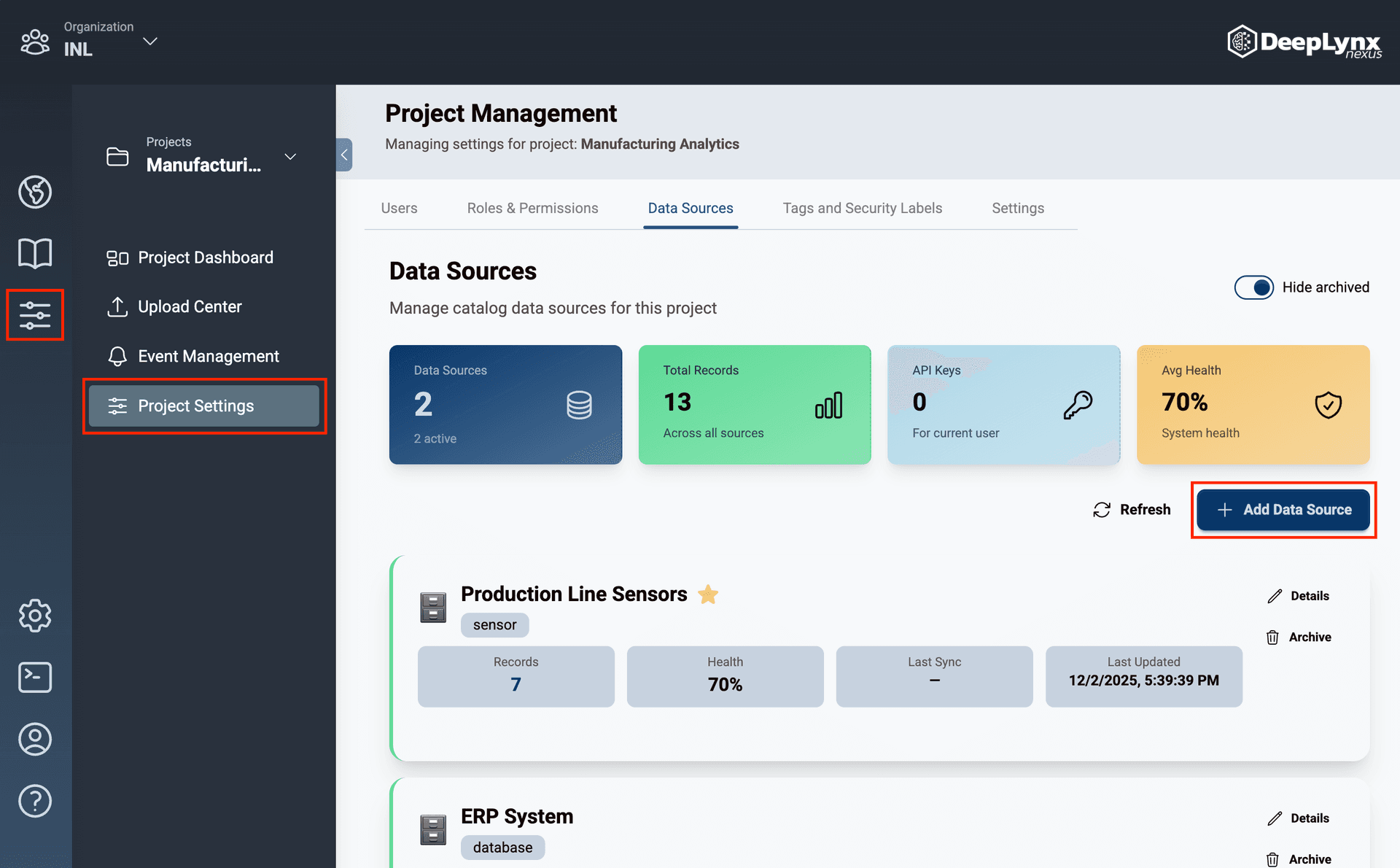
Navigate to the Project Management page by clicking the slider bar icon on the inner toolbar.
On the Data Sources tab of the Project Management page, click the “Add Data Source” button.
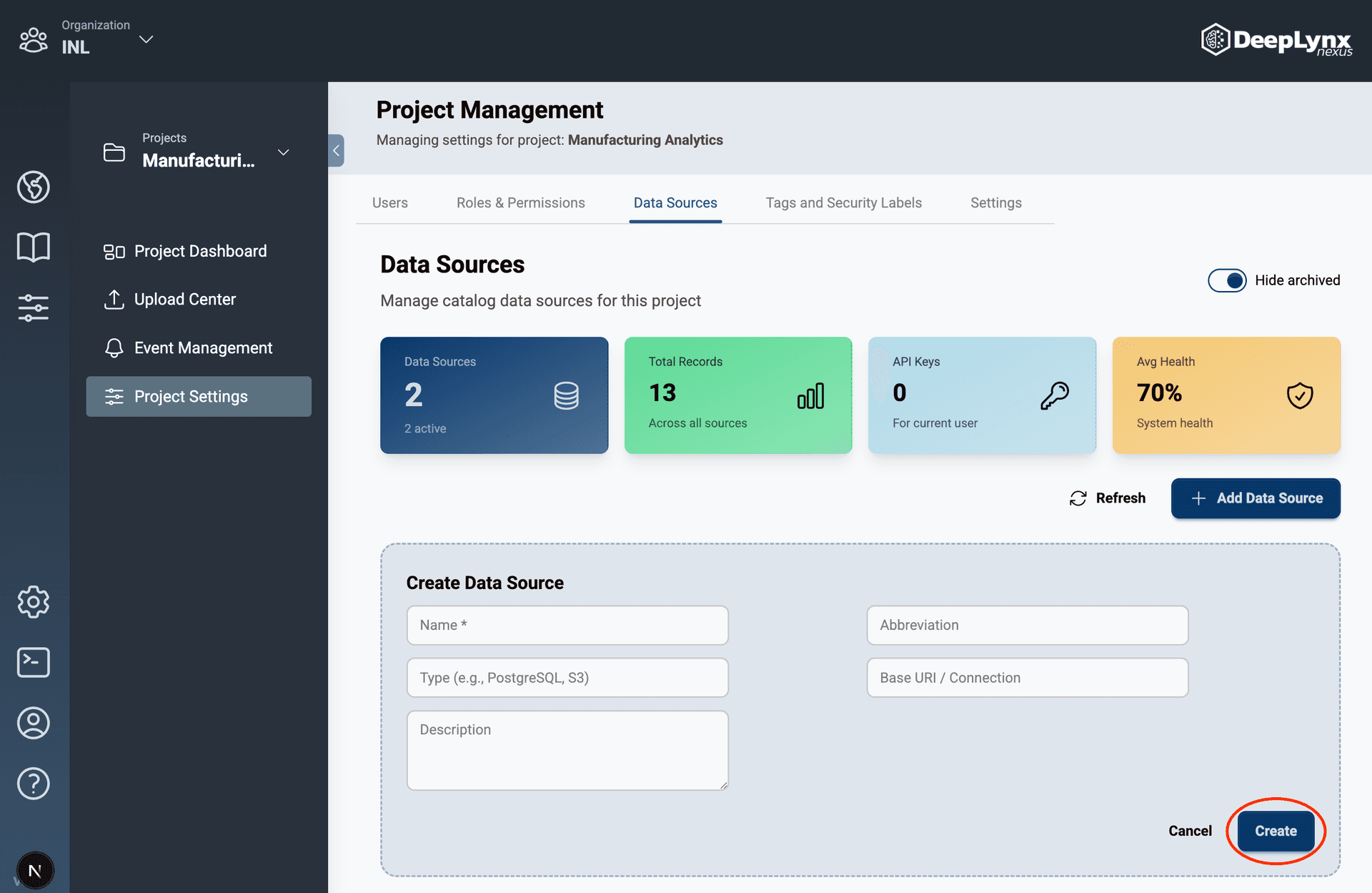
Enter the required details for the new data source and click the “Create” button.
The new data source will be added to the Data Sources widget of the Project Management page!
Editing Data Sources
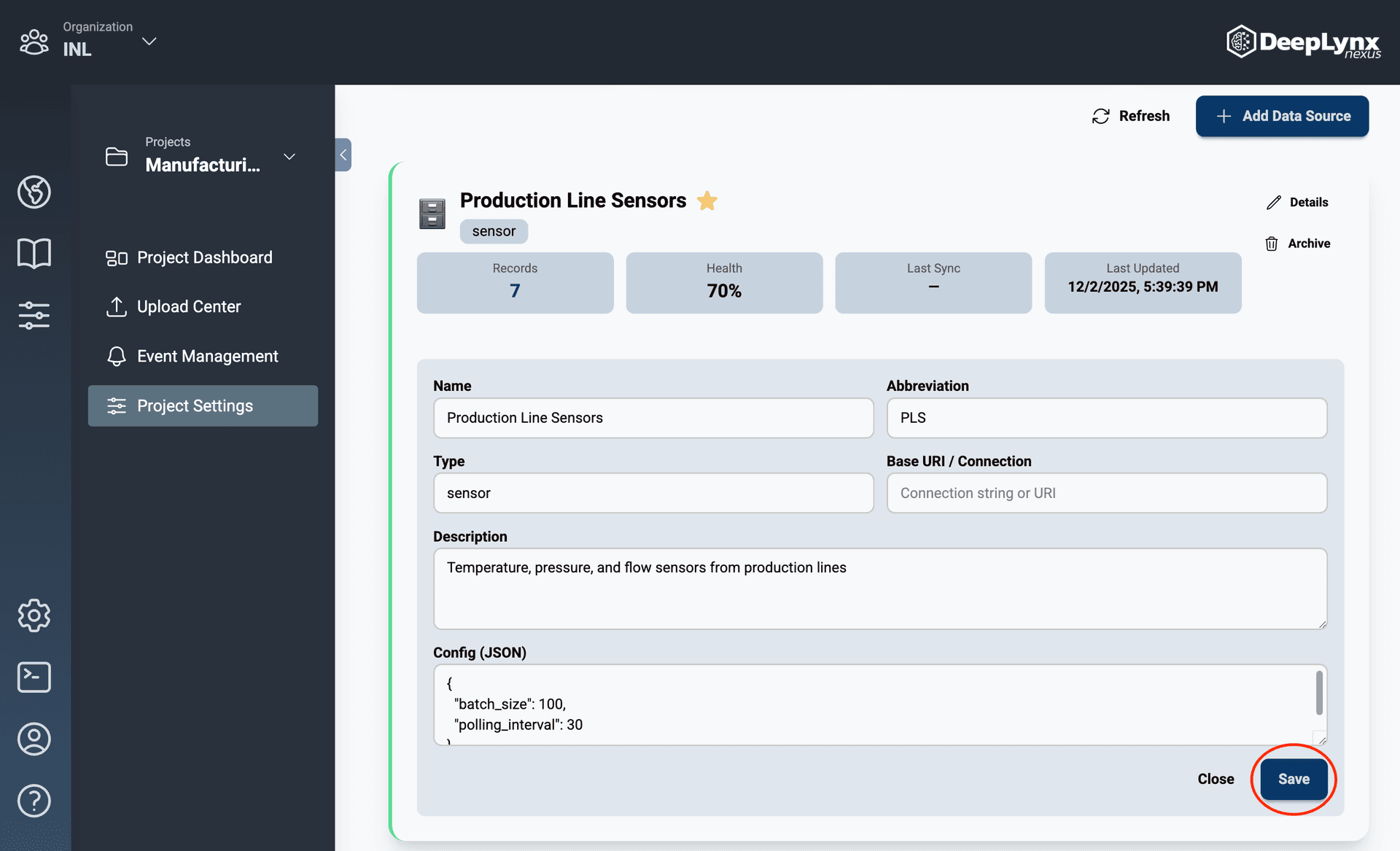
Project admins can edit the name, abbreviation, type, base URI/ Connection, description, and the config of existing project data sources.
Click the pencil icon button “Details” next to the selected data source.
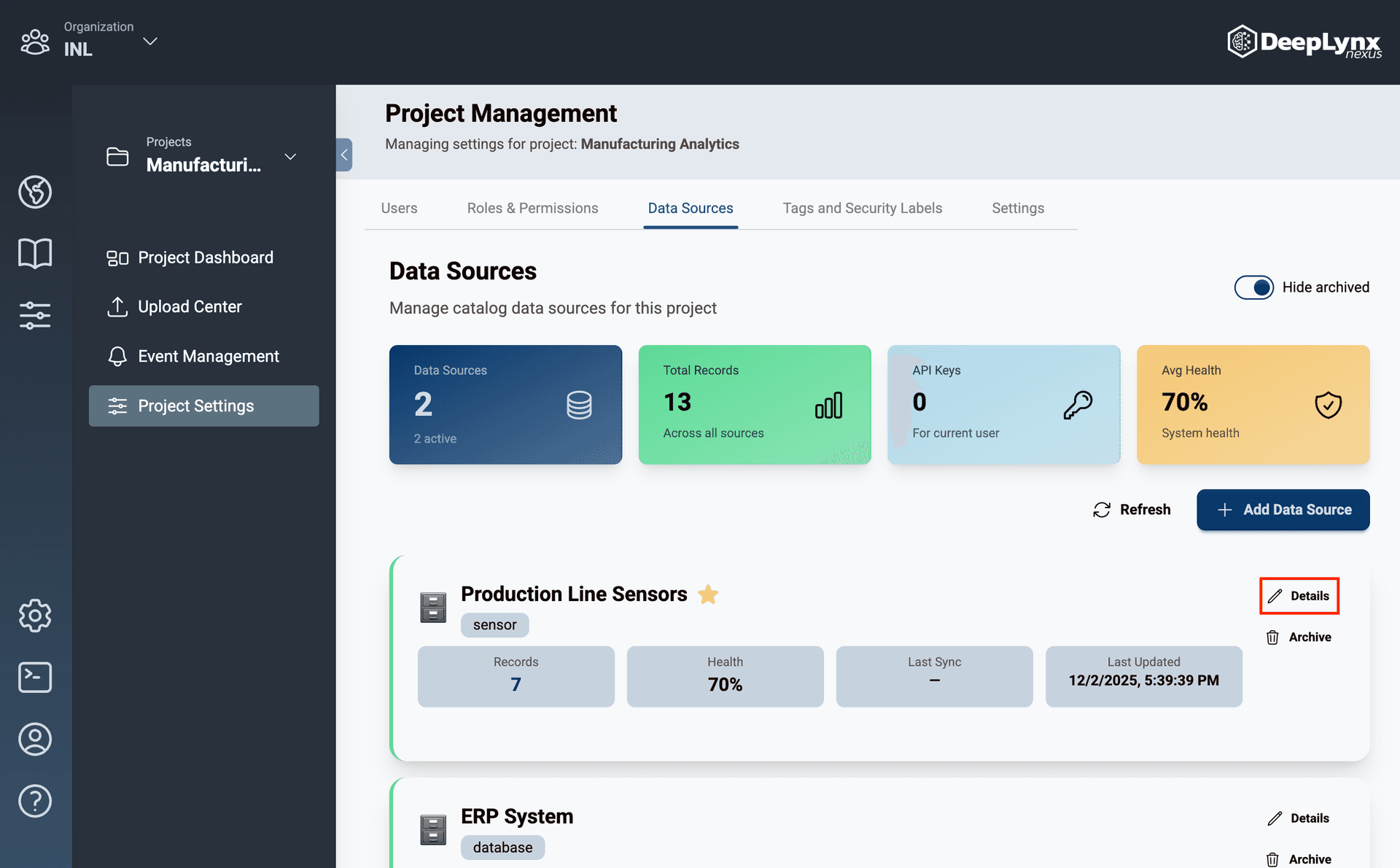
Make changes to the data source fields and click “Save”.
Removing Data Sources
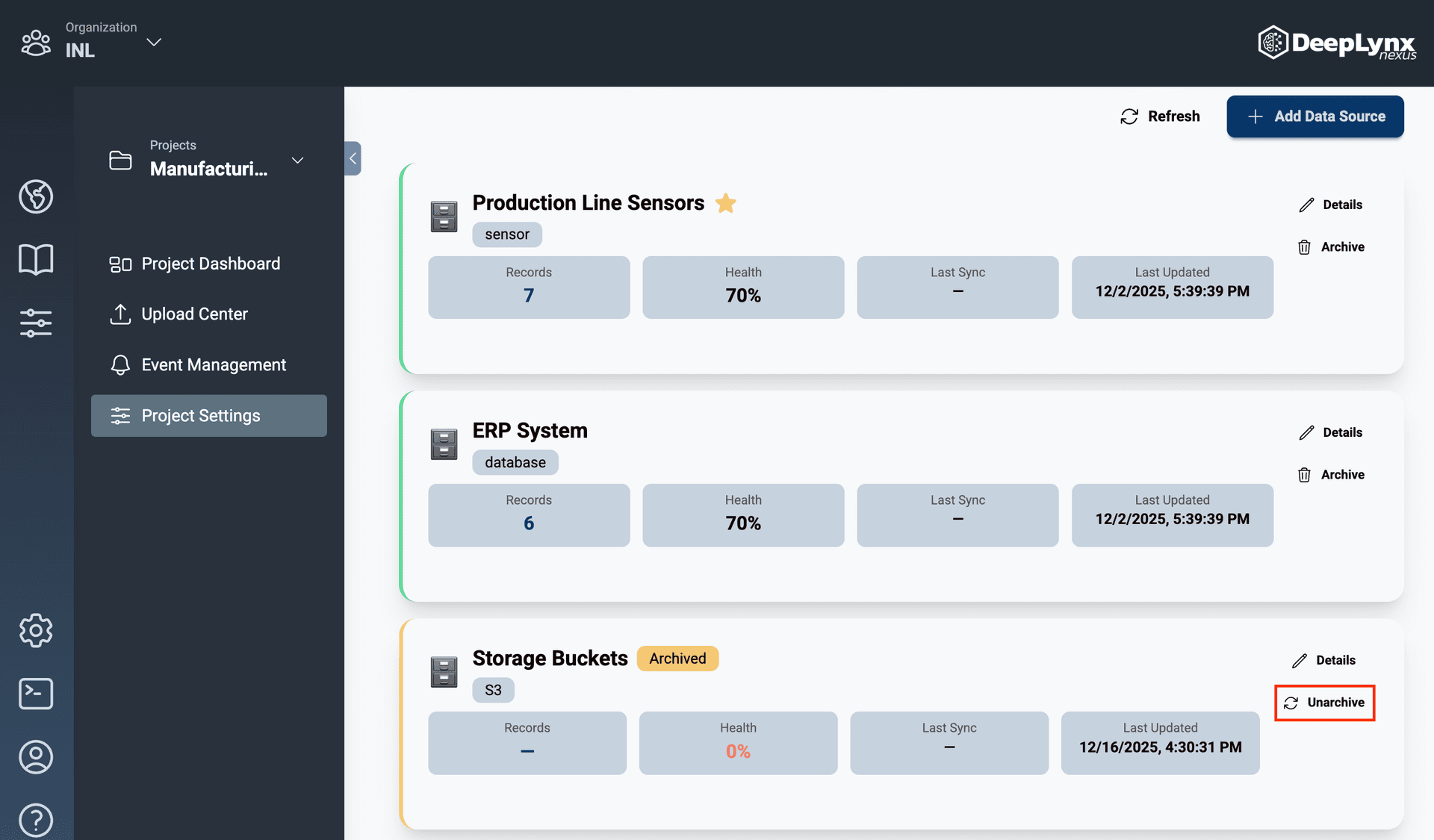
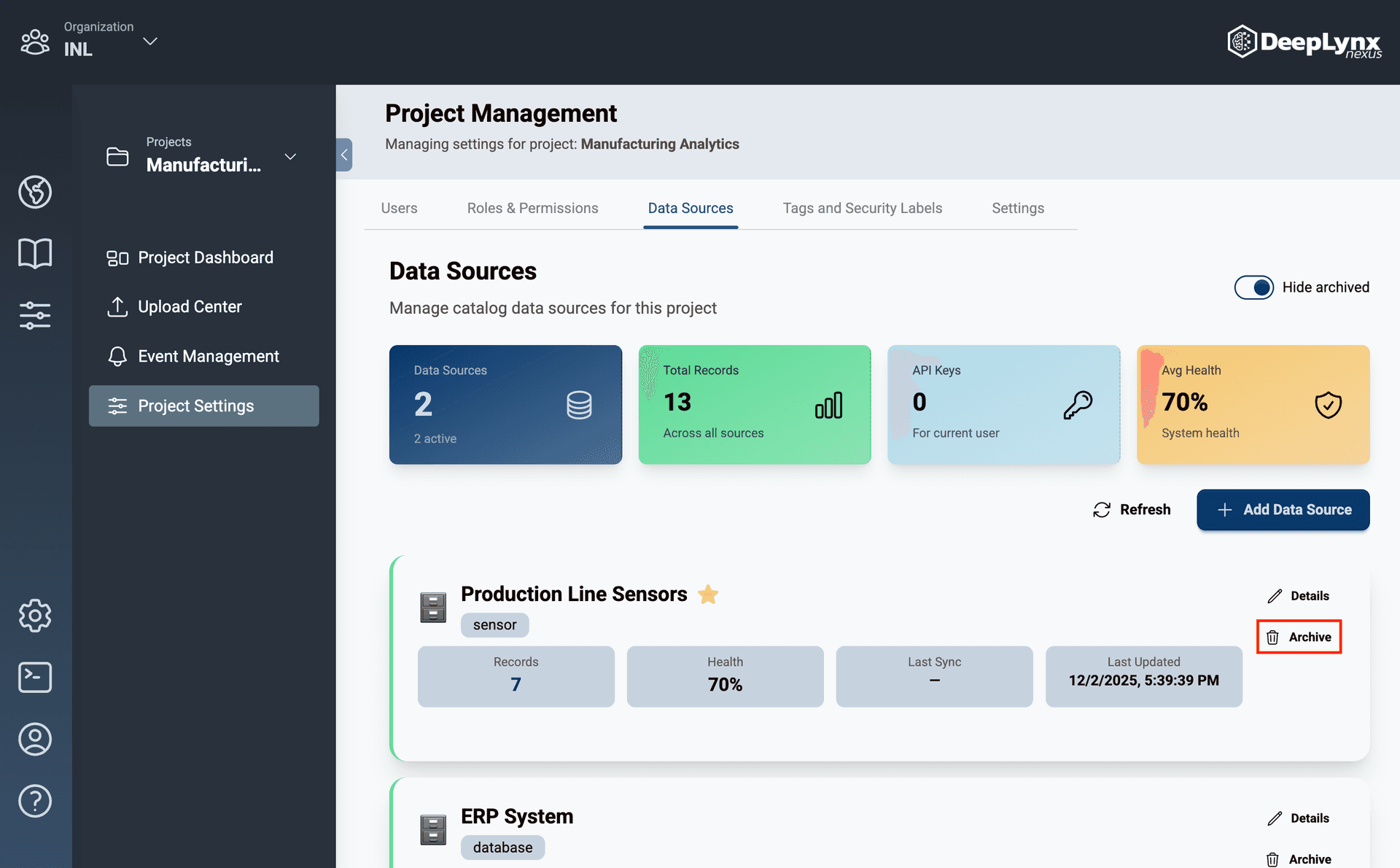
To remove data sources, click the “Archive” button of the selected data source.
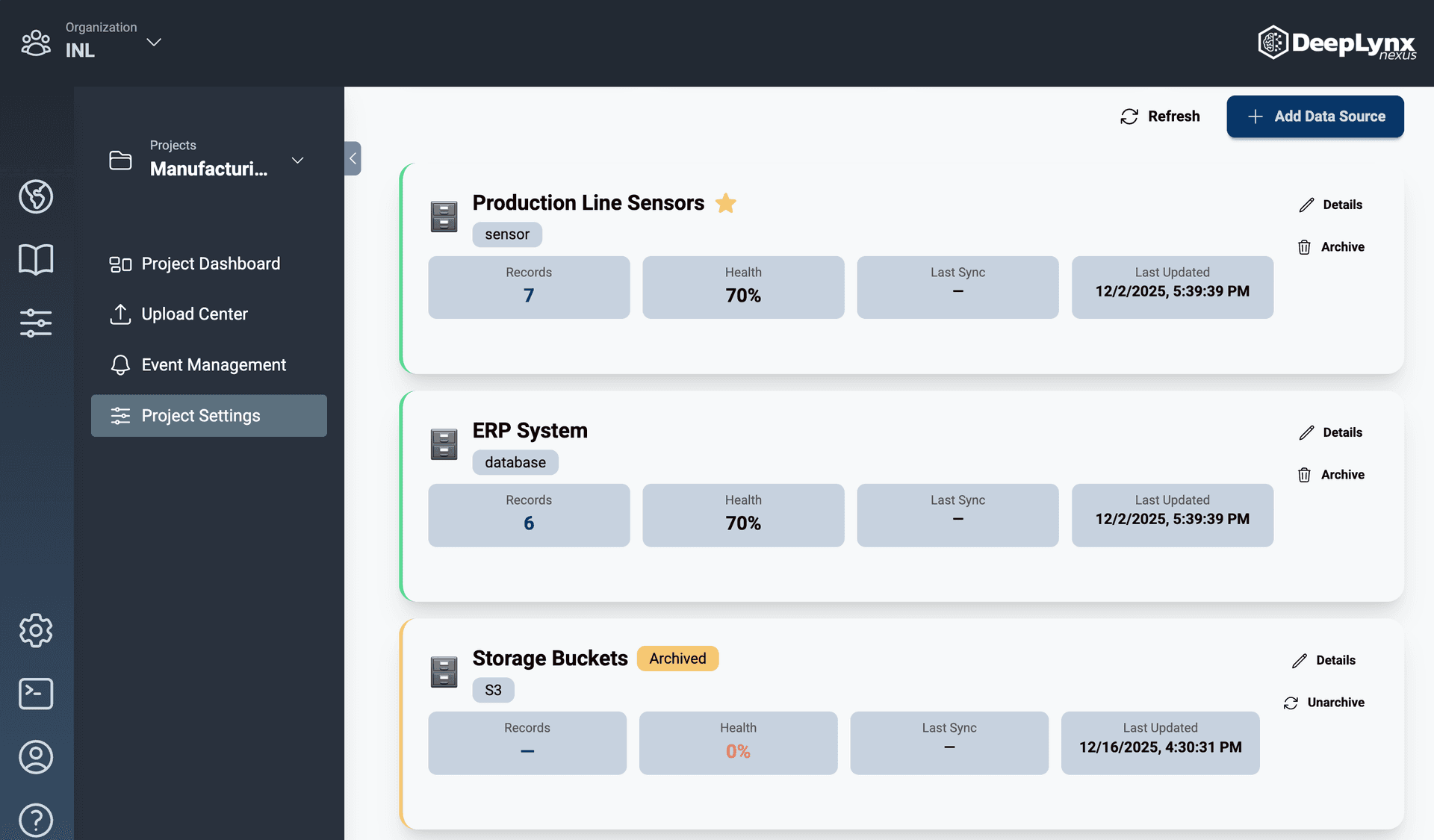
Note: Once a data source is archived it will have a yellow highlight and can no longer be used. It must be unarchived to be reapplied to a project.
Hiding Archived Data Sources
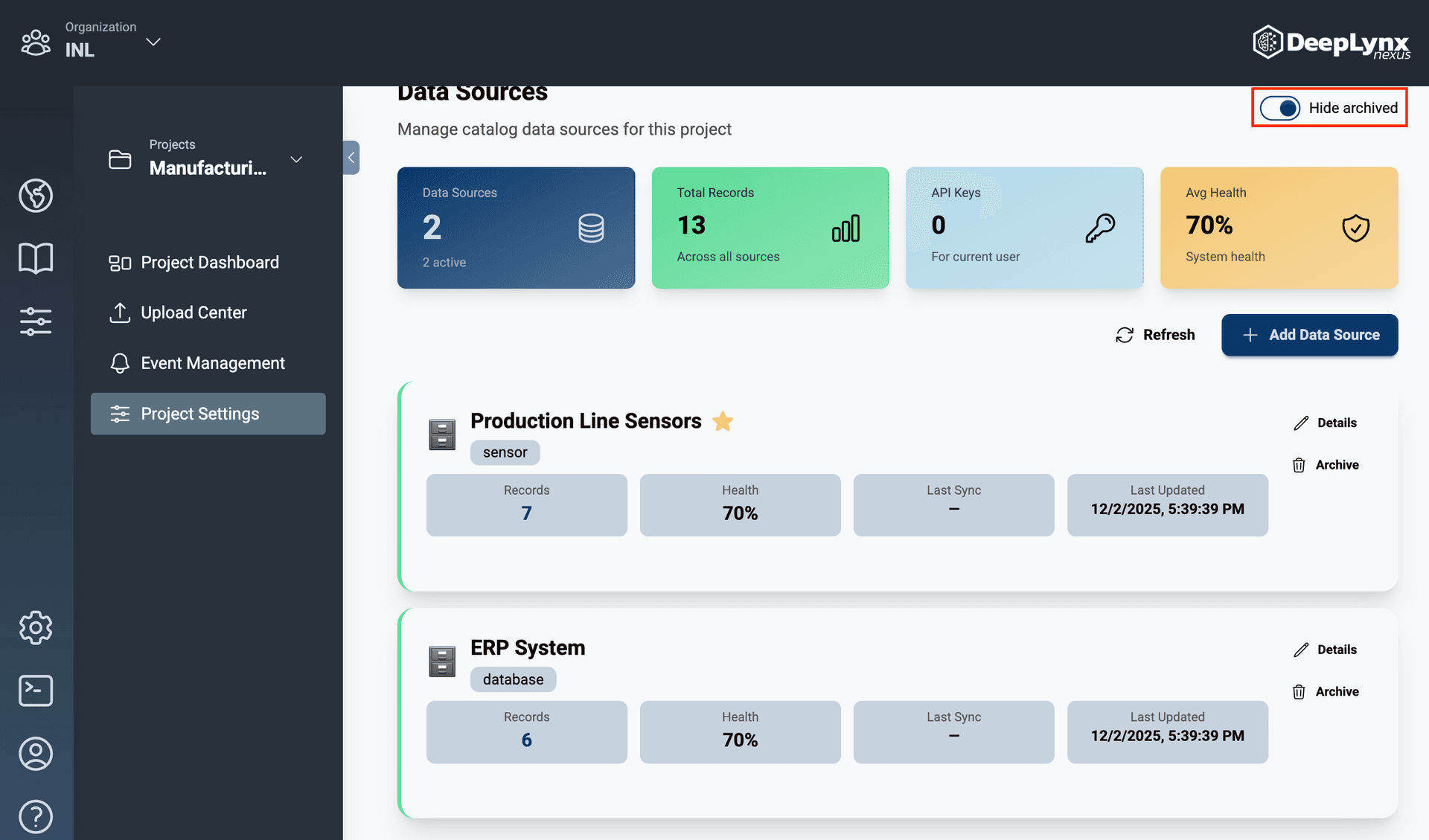
The project admin also has the ability to hide archived projects by switching the toggle “Hide Archived”.
Unarchiving a Data Source
Click the unarchive button of the selected data source.