MCP Server
The Nexus Model Context Protocol (MCP) Server allows users/developers to interact with Nexus using natural language. This server is still in the development stage, so it only has a few tools developed. If you want to know how to run and test the server, this page will help!
Server Setup (Local Only)
To set up the server, there are only two variables which you need to worry about.
These variables should already be pre-configured in the kubernetes files for deployed and dockerized instances of Nexus.
For local instances, these variables can be found in the .env-sample file in the deeplynx.mcp directory.
To populate them, simply copy the contents of this file to a new file named .env and put in your specified values:
# in deeplynx.mcp directory
cp .env-sample .env
MCP_SERVER_URL controls which address and port the MCP server listens on internally.
For most users, the default value (http://0.0.0.0:43656) will work without any changes.
The 0.0.0.0 address means “listen on all network interfaces”— this allows the server to accept connections
whether you’re running locally or in a deployed environment. The port 43656 is simply the internal port the server uses.
For deployed instances behind a reverse proxy, users will access the MCP server through your public URL at the
/mcp endpoint (e.g., https://your-domain.com/mcp). The reverse proxy handles routing external requests to the internal address automatically.
You only need to change this value if port 43656 conflicts with another service in your environment.
NEXUS_API_URL is the url that the Nexus API server is hosted on. If it is running locally, the value should always be the same,
but you may need to change it depending on which instance you want your server to hit. Deployed instances can reference the
BACKEND_BASE_URL variable used in the Nexus frontend instead of specifying this variable.
For local development instances of the app, you can run the mcp server by cding into the deeplynx.mcp directory.
If it is your first time running the server, you can use the command dotnet build && dotnet run.
From then on, every time you want to start the server, you will only need to execute dotnet run unless changes are made to the server code.
For local docker instances, as well as deployed instances, MCP server startup is part of the dockerfile/kubernetes config and should already be handled for you.
Client Setup: Connection URLs
The remainder of this article covers connecting to the MCP server as a client.
To connect to the Nexus MCP server, you need two URLs: the MCP server URL and the Nexus API URL. The values depend on your setup:
| Setup | MCP_SERVER_URL | NEXUS_API_URL |
|---|---|---|
| Deployed Instance | {your_nexus_url}/mcp | {your_nexus_url}/api/v1 |
| Local Docker | http://localhost:43656/mcp | http://localhost:5000/api/v1 |
| Local Developer | http://localhost:43656/mcp | http://localhost:5095/api/v1 |
For deployed instances, replace {your_nexus_url} with the URL of your Nexus deployment (e.g., https://deeplynx.inl.gov).
For local Docker, check out the README.md in the Nexus GitHub repository to start all services.
For local development, ensure you have followed the instructions outlined in Server Setup and verify the ports in your .env file match your configuration.
Once you have your URLs, you can connect using any MCP client or follow the instructions below for running an example client with VSCode.
Example Agent (Optional)
You can use whichever agent that can connect to a remote MCP server (or even connect via curl or python commands), but here is an example using the Continue agent and Ollama model. Keep in mind, these are free, lightweight services so they are not perfect.
Install the Continue extension on VSCode

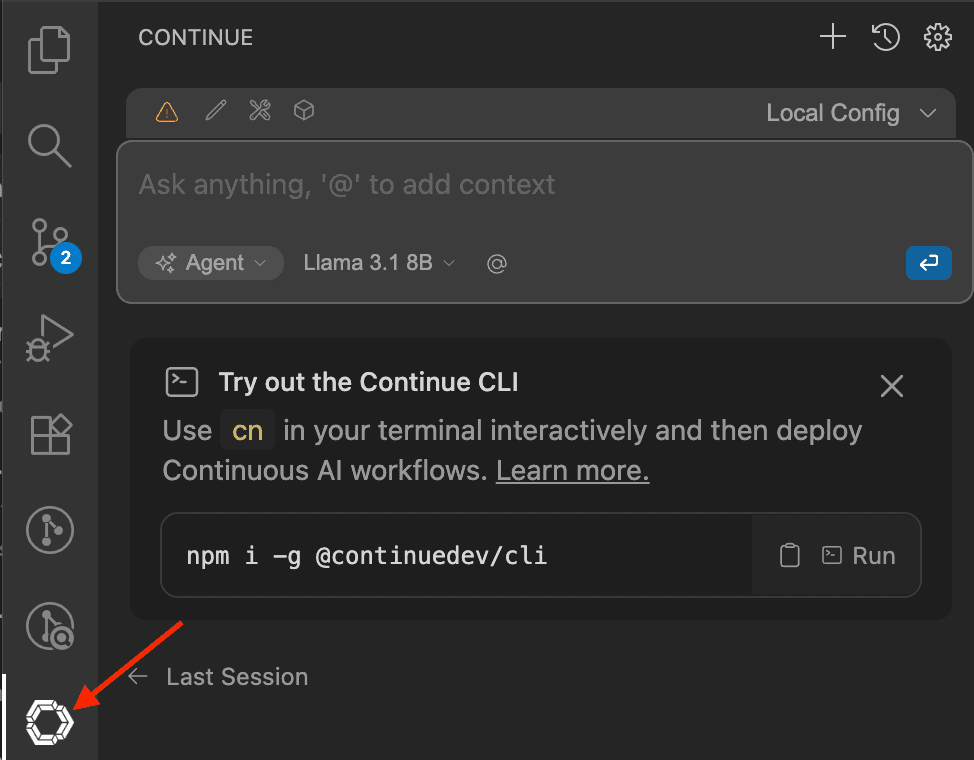
Click on the extension icon on the left and ensure Continue is in Agent mode (indicated in bottom left of the chat window)
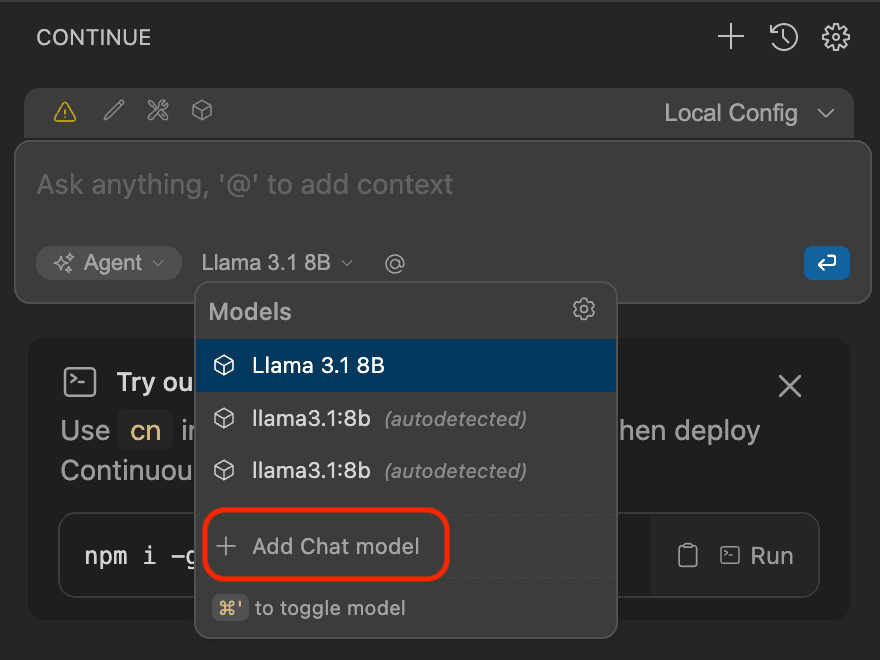
Click on the model dropdown, and click “Add Chat model”
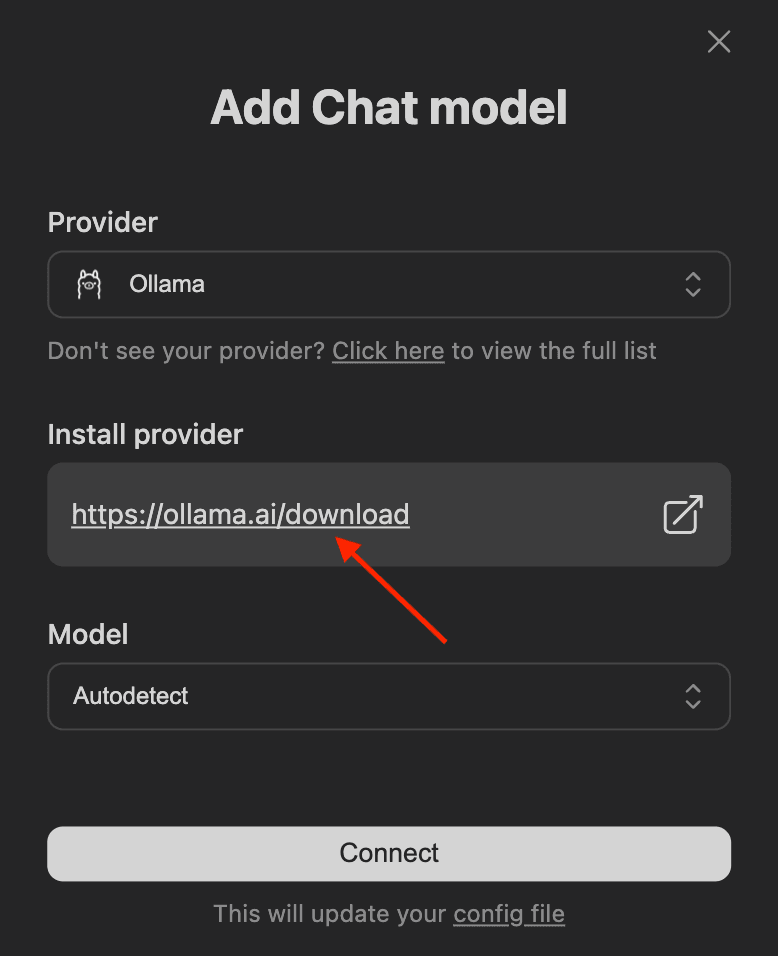
Set the Provider to Ollama and download Ollama at the provided URL.
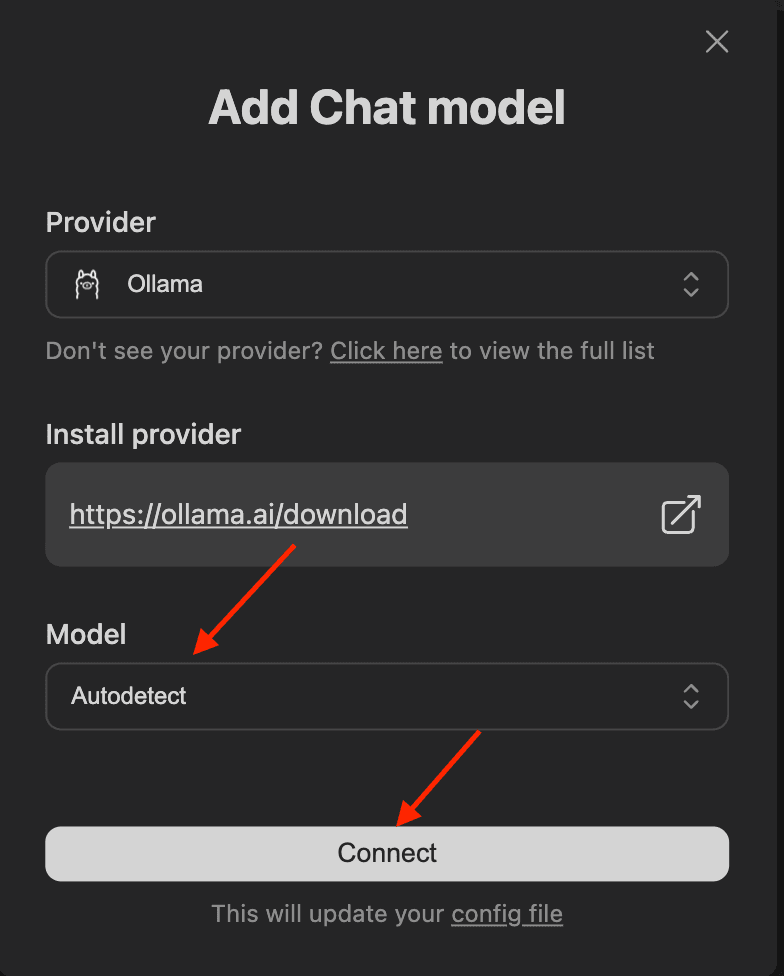
After Ollama is downloaded and installed, run the command:
ollama pull llama3.1:8bMake sure the Model is set to Autodetect and click “Connect”
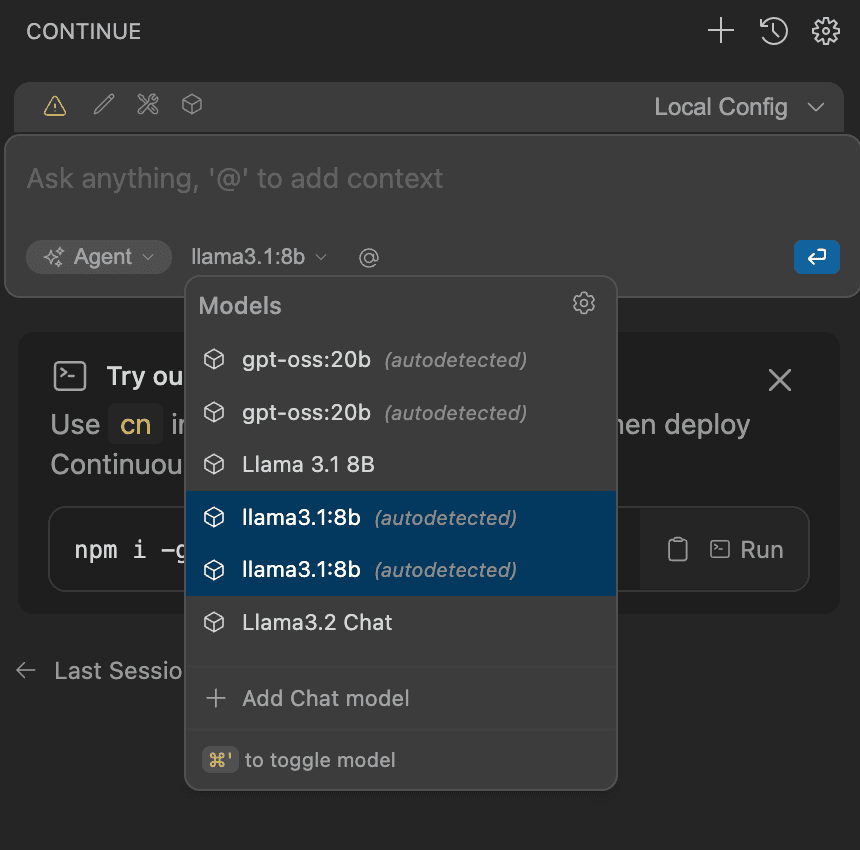
In the model dropdown on the bottom left of the chat window, click the auto-detected llama model
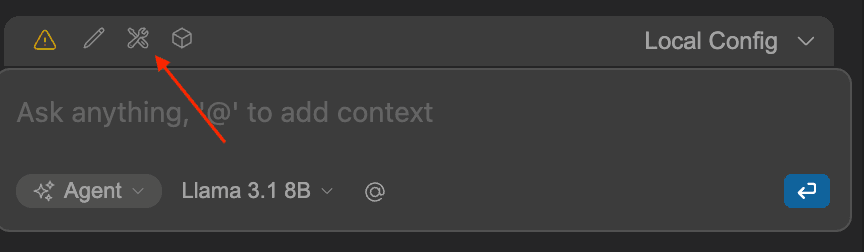
Click on the tool icon above the chat window
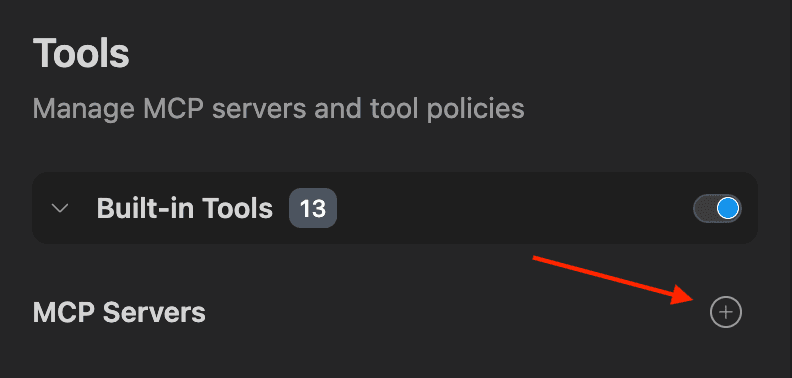
Click the + icon to the right of MCP Servers
Add this into the yaml file that is created. Insert the URL that your mcp server is hosted on, as well as your bearer token as a header.
name: Nexus
version: 0.0.1
schema: v1
mcpServers:
  - name: Nexus MCP Server
    type: streamable-http
    url: <Insert MCP URL Here>
    headers:
      Authorization: Bearer <Insert Your Token Here>
Now you should be able to ask the agent questions like:
“Get all of my projects in organization 1 and read the names and LastUpdatedAt values back to me”
“Get all of my records in project 2”
Keep in mind, we do not have direct control over how the model/agent serializes the request to send to your mcp server based on your response. So, it may hallucinate and add random values or may send the string “true” instead of a boolean true or visa-versa. This is not the best agent-model pair that is available, but it is free. Feel free to use other services if you come across another that works better for you. That is the beauty of MCP servers, they can be used with any!
Testing with cURL
You can also test your MCP server directly using curl:
curl -X POST <MCP_URL> \
  -H "Content-Type: application/json" \
  -H "Authorization: Bearer <YOUR_TOKEN>" \
  -d '{
    "jsonrpc": "2.0",
    "id": 1,
    "method": "tools/call",
    "params": {
      "name": "get_all_projects",
      "arguments": {
        "organizationId": 2
      }
    }
  }'
For Nexus Contributors: Adding tools
All the tools for the MCP server are located in the ‘tools’ folder. Each file is separated by the entity you are wanting to query. For example, if you create a GetProject tool, you would put it in the ProjectTools.cs file. If you are wanting to create a GetAllDataSources tool, you would need to create a new file and put the tool inside a class named ‘DataSourceTools’. Use the existing tools as a reference of how to make new ones.